Hiển thị các bài đăng có nhãn Ransomware. Hiển thị tất cả bài đăng

Thứ Năm, 13 tháng 11, 2014

decode@india.com - Attention! Your computer was attacked by virus-encoder ransomware

If you're reading this it's likely you've encountered a new ransom Trojan (ransomware) that encrypts your files and then asks you to pay 1 Bitcoin in order to recover them using decoder program and your private key. Unlike most ransomware, CryptoWall 2.0 and CoinVault for instance, this Trojan displays a short message that your computer is infected followed with an email address decode@india.com. What you have to do first is to write an email and I guess cyber crooks will then give you more information on how to pay the ransom. They probably don't want to make the whole process public or maybe there's just a lack of functionality in this ransomware. Each victim has his unique ID which is a part of a full email address, for example id-5128765210_decode@india.com. First of all, knowing how this piece of malware got its name will help you understand the very nature of a ransom Trojan Horse. Here's the message decode@india.com encryption virus displays on infected computers:

Attention! Your computer was attacked by virus-encoder.
All your files are encrypted cryptographically strong, without the original key recovery is impossible!
To get the decoder and the original key, you need to to write us at the email decode@india.com with the subject "encryption" stating your id.
Write in the case, do not waste your and our time on empty threats.
Responses to letters only appropriate people are not adequate ignore.


As you can see, cyber crooks will only respond to properly written emails with your ID. I wouldn't recommend paying the ransom but if the data encrypted is very important to you, I mean so important that you can't afford to lose it then you may consider sending them 1 bitcoin. But remember, there's really no guarantee that they will send you the decoder and the key. So, you may lose your money and not just your files. Think twice before paying the ransom and don't supper scammers.

Another important question is how did you get this virus? For today's Trojan Horse has more than a name in common with its olde worlde counterpart; in other words, the giant wooden horse that the Greek army built and offered to the people of Troy as a peace offering during the two nation's lengthy war. You see, the Greeks built this horse in order to ambush the Trojans and hid their men in its hollow stomach. Once the Trojans had accepted the, albeit rather strange gift (maybe it made sense at the time!) and wheeled it into the city, the soldiers crept out after nightfall and opened the city gates to their fellow countrymen. In this way, the City of Troy was taken and the Greeks won the war. Yes, it was a sneaky tactic, but as they say, all's fair in love and war. Ok, you may think that this story is unrelated but it actually isn't. So what does this have to do with our modern day Trojan? Well, just as the Greek army used their rather deceptive method to infiltrate Troy and attack it from within, so too will Trojan Horse malware infiltrate your PC and cause you harm from inside your own machine. This decode@india.com file encryption Trojan is distributed in various sneaky ways as well. Most of the time, it is downloaded from scam emails with invoices from well know companies and online shops. Be very careful opening attachments like inviuce_2014_11_854125478.zip because you may easily infect your computer with this ransom Trojan.

What do ransom Trojans do?

Trojan malware is a program which purports to be harmless – or even offer useful benefits - but the reality is very different and it can, and will, cause chaos to your files and data.

On the plus side, Trojan Horse malware is usually easy to spot, once it's been installed, that is. These are some of the telltale signs which will help you recognize a Trojan:
  • Your PC is sluggish and programs keep crashing
  • You're online but it's taking ages to open websites
  • Your PC or laptop take much longer to start up when you try and log in
  • There is something you don't remember downloading in your list of installed programs
  • There are icons that you have never seen before on your desktop
  • You have a new tool bar that you've never seen before
  • Your default settings have changed and refuse to return to normal
  • You're seeing a large number of pop up or pop under adverts
  • And for the ransom Trojan one sign is more than obvious: all your files are encrypted and you can't open tehm
How to protect your computer against Trojan Horses

The good news is there are things you can do to defend yourself from Trojans:
  • Install a reputable anti-malware program on your computer and ensure it's the latest version and your patches are up to date
  • Use a firewall to block unwanted connections
  • Be discerning about the type of websites that are visited on your computer. Adult and gambling (to name two) are prime Trojan Horse stomping grounds
  • Don't open attachments or click on links in emails if you don't know the sender
  • And most importantly, create backups. Every week or month or every time you need. Having backups will help you a lot in case your computer gets infected with a ransomware virus like this one
So what should you do your files have been encrypted? Easy to say, but try not to panic and most definitely do not pay any money unless the encrypted files are very important and you can't afford to lose them. If the encrypted files are not very important or you don't have money to pay the ransom, you can remove try to restore your files (at least some of them) using Shadow Explorer and specialized tools listed below. Please note that even of you decide to pay the ransom there's really no guarantee that scammers will recover your files.

If you have any questions, please leave a comment below. Last, but not least, if there's anything you think I should add or correct, please let me know. It might be a pain but the issue needs to be dealt with – and the way to do it is by not giving in, not paying up and not letting the attackers win.

Written by Michael Kaur, http://deletemalware.blogspot.com


Step 1: Removing decode@india.com ransomware and related malware:


Before restoring your files from shadow copies, make sure this ransom Trojan is not running. You have to remove this malware permanently. Thankfully, there are a couple of anti-malware programs that will effectively detect and remove this malware from your computer.

1. First of all, download and install recommended anti-malware scanner. Run a full system scan and remove detected malware.

Important! If you can't download or run it, please restart your computer in Safe Mode with Networking or Safe Mode and try again.


2. Then, download ESET Online Scanner and run a second scan to make sure there are no other malware running on your computer.

That's it! Your computer should be clean now and you can safely restore your files. Proceed to Step 2.


Step 2: Restoring files encrypted by this virus:


Method 1: The first and best method is to restore your files from a recent backup. If you have been regularly performing backups, then you should use your backups to restore your files.

Method 2: Before using Shadow Explorer, you can try to decrypt some of your files using RakhniDecryptor.exe and RectorDecryptor.exe from Kaspersky. These tools might help you, but please note that they were not designed decrypt the data encrypted by this ransomware virus. However, you can still try them.

Method 3: Using the Shadow Volume Copies:

1. Download and install Shadow Explorer. Note, this tool is available with Windows XP Service Pack 2, Windows Vista, Windows 7, and Windows 8.

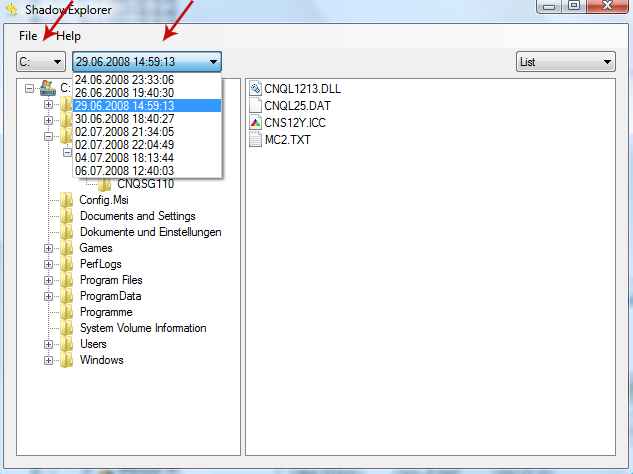
2. Open Shadow Explorer. From the drop down list you can select from one of the available point-in-time Shadow Copies. Select drive and the latest date that you wish to restore from.


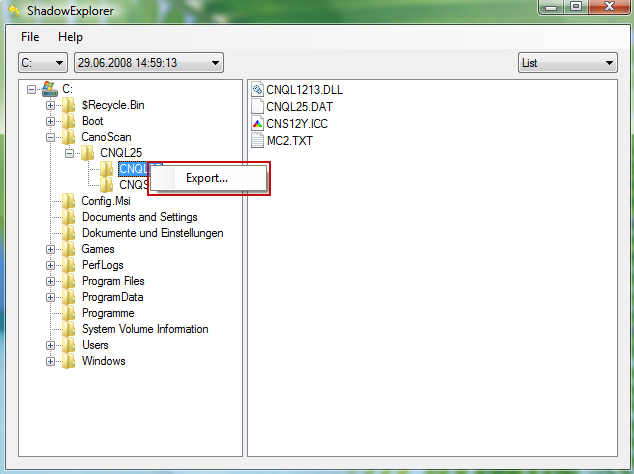
3. Righ-click any encrypted file or entire folder and Export it. You will then be prompted as to where you would like to restore the contents of the folder to.


Hopefully, this will help you to restore all encrypted files or at least some of them.

Thứ Tư, 12 tháng 11, 2014

How to Remove CoinVault Virus and Restore Encrypted Files

CoinVault is an encryption virus (ransomware) that encrypts your files and then requires a 0.7 bitcoin ransom (sometimes even more) in order to get your private decryption key and IV. It's similar to the CryptoWall 2.0 ransomware but this variant is less sophisticated. However, it doesn't mean that this virus is less dangerous. Once installed, it will encrypt most of your files just like any other ransomware out there. Cyber crooks allow you to decrypt one file for free but since it leaves certain information of the encrypted files on your computer there's a good chance you will get at least some of them without paying the ransom. To learn more, please follow the steps in the removal guide below.


You may ask, where did this CoinVault virus come from? It's usually installed by other malware, mostly Trojan horses. You may well remember the ancient Greek myth about the giant wooden Trojan horse which was created by the Greeks in order to infiltrate the City of Troy. You may also be wondering why this article about malware is opening with such an old story. That's because the Trojan horse of yesteryear and its modern day equivalent have a lot more in common than you may think.

This type of malicious software, the Trojan Horse, did indeed take its name from the tale and once you know just how Trojan Horse malware works, it will all make perfect sense! If you still remember your history or classics lessons then you'll know that the siege of Troy lasted for many years, resulting in a stalemate which drove the Greeks to take desperate measures. After building their wooden horse they rolled it to the city gates and claimed it was a peace offering to the Trojan people. However, unbeknown to the (un)lucky recipients, the Greek army was actually hiding inside the horse and as soon as it was taken beyond the city gates and night fell, the Greek soldiers climbed out and opened the gates to their waiting army. And that, in a nutshell, is pretty much how a modern Trojan Horse works: it looks innocent but it has been specifically designed to cause a great deal of harm.

As did their ancient namesake, today's Trojans make use of their victims' susceptibility to play a role in the attack. And a lot like the horse of yore, Trojan Horses in 2014 are designed to wreak havoc on their target. CoinVault ransom Trojan will cause irreparable damage to your files, corrupt your data and can leave your computer's security in tatters. Unlike other forms of malware they do not steal data or assume your identity or try to steal money from you, they really have just been created on the whim of some spiteful software developer. The bad news is that you won't even notice when this virus will start encrypting your files unless you are constantly monitoring your CPU usage, etc. When it has finished encrypting your files it will then display a ransom screen that explains how you can pay a ransom to get your files back.

Your personal documents and files on this computer or device have just been encrypted.
Encrypted means you will not be able to access your files anymore, until they are decrypted.
Your original files have been deleted, these can be recovered as described below.
Click on "View encrypted files" to see a list files that got encrypted.

The encryption was done with a unique generated encryption key (using AES-128).
The only way to decrypt your files, is to obtain your private key and IV.

The private key, which will allow you to decrypt and get your original files back, is stored on our server. Each time the timer hits zero, the total costs will raise with the starting price.

To receive your private key, you need to pay the amount of bitcoin displayed left of this window (costs).
You need to send the amount of bitcoins to the bitcoin address at the bottom of this window.

After the purchase is made, please wait a few minutes for conformation of the bitcoins.
After the bitcoins are confirmed, click the 'check payment and receive keys' button.
Your keys will appear in the texboxes. After that, you simply click 'decrypt using keys', your files will be decrypted and restored to their original location.

Each encrypted file is stored in CoinVaultFileList.txt file. Each user will be assigned a different bitcoin address to make it harder to monitor payments for CoinVault. Other ransom Trojans use TOR or similar web services to collect the payments. This virus acts as the decrypter and payment system thus eliminating any other services that could be used by authorities to track cyber crooks down. So, as I said, even though it's not the most sophisticated ransomware I've ever seen it's still a very dangerous infection.

When running CoinVault will block pretty much every executable file in order to protect itself from being removed. It means it will probably block your antivirus program as well. If you can't run any malware removal tool on your computer then restart the system in Safe Mode or Safe Mode with Networking and try again. What is more, this virus will change your Windows wallpaper saying "Your files have been encrypted!".


Some Trojans Horses are associated with instant messenger apps – now such a popular way of keeping in touch – as well as file sharing tools, however they are mostly spread via spam email. And it is that is where the scammers need to get creative (just like those ancient Greeks) by convincing you to open an attachment or link in an email or instant message. Once you've done that, you will be attacked from within your own city wall, as it were.

How can I defend myself from attack by CoinVault? Fortunately there are a few things you can do to protect yourself from the chaos caused by this ransom virus. Make sure that you have a good anti-malware program installed on your PC or laptop and keep it up to date, and scan your machine with it manually on a regular basis. Keeping Windows updated too is crucial as this will ensure that you have the latest versions of security patches. Finally, you know it, but are you still guilty of it? Don't download unknown programs and never open emails or attachments from senders you don't recognize. And last, but not least, backup your files! Having backups in place will save you headaches and time, trust me. If you have any questions, please leave a comment down below. Good luck and be safe online!

Written by Michael Kaur, http://deletemalware.blogspot.com


Step 1: Removing CoinVault and related malware:


Before restoring your files from shadow copies, make sure CoinVault is not running. You have to remove this malware permanently. Thankfully, there are a couple of anti-malware programs that will effectively detect and remove this malware from your computer.

1. First of all, download and install recommended anti-malware scanner. Run a full system scan and remove detected malware.

Important! If you can't download or run it, please restart your computer in Safe Mode with Networking or Safe Mode and try again.


2. Then, download ESET Online Scanner and run a second scan to make sure there are no other malware running on your computer.

That's it! Your computer should be clean now and you can safely restore your files. Proceed to Step 2.


Step 2: Restoring files encrypted by CoinVault virus:


Method 1: The first and best method is to restore your files from a recent backup. If you have been regularly performing backups, then you should use your backups to restore your files.

Method 2: Before using Shadow Explorer, you can try to decrypt some of your files using RakhniDecryptor.exe and RectorDecryptor.exe from Kaspersky. These tools might help you, but please note that they were not designed decrypt the data encrypted by this ransomware virus. However, you can still try them.

Method 3: Using the Shadow Volume Copies:

1. Download and install Shadow Explorer. Note, this tool is available with Windows XP Service Pack 2, Windows Vista, Windows 7, and Windows 8.

2. Open Shadow Explorer. From the drop down list you can select from one of the available point-in-time Shadow Copies. Select drive and the latest date that you wish to restore from.


3. Righ-click any encrypted file or entire folder and Export it. You will then be prompted as to where you would like to restore the contents of the folder to.


Hopefully, this will help you to restore all encrypted files or at least some of them.

Thứ Tư, 22 tháng 10, 2014

CryptoWall Malware Removal Guide

CryptoWall is a piece of malware called ransomware which encrypts files with a very strong 2048-bit RSA cryptosystem algorithm. This malware was first noticed at the end of April 2014. Macs are currently susceptible to the CryptoWall malware. Cyber crooks target Windows systems. The latest variants of this malware were digitally signed and delivered mostly by sending mass emails, mentioning something like "UPS invoice week ending 19/10/2014" something about missed delivery with an attached zip file that contains an executable file (.exe), for example this one. I'm pretty sure that cyber crooks could easily target big companies with very well made scam emails. Besides, they are clearly targeting those who have important data and could pay $500 or even $1000 to get the decryption tool. Usually, this malware starts of slowly and invisibly. Why? The reason is simple - it has to encrypt as many files as possible before displaying a notification that your files were encrypted followed by instructions on how to get them back. In other words, starts asking for the ransom. It doesn't damage Windows, so the computer stays usable. Encryption keys that are very important for successful file decryption are securely stored on their servers. So, there's really no way you can get those keys unless you know how to trace and hack those servers. Just for the record, no one succeeded so far.

Do you remember the ancient Greek myth about the Trojan horse? The gigantic wooden horse that members of the Greek army hid inside to trick their enemies in Troy into giving them access to the walled city they held under siege – consequently attacking them in the dead of night after opening the city gates to their fellow soldiers. Are you wondering where I'm going with this? Well, knowing the background of this story, gives you a very good idea of what a modern day ransomware is all about.


Today's Trojan Horses are a form of malicious software, more commonly referred to as malware. And just as the Greek army conned their way into the city of Troy by making the inhabitants believe the wooden horse was a peace offering, this CryptoWall malware sneaks its way onto your PC by also asking you to invite it in. What is more, the latest variant of this malware is very sophisticated. It uses unique bitcoin payment addresses to track every infected computer. Cyber crooks have their own TOR gateways operating under the following domains: tor4pay.com, pay2tor.com, tor2pay.com, and pay4tor.com. Some of these domains may be blocked but or changed any time but the fact is that scammers will not run short of Web-to-TOR gateways any time soon. The unique URL where you need to go using TOR browser looks like this: paytorhrosnsbfkd.tor4pay.com. The first part is your unique number then goes the web to TOR gateway. CryptoWall creators have also improved the way files are encrypted and deleted from the computer minimizing recovery chances close to zero if you don't create back ups. However, there are still some tricks that can help you restore at least some of your files. For more details, please follow the steps in the removal guide below.

Here's how the DECRYPT_INSTRUCTION.HTML reads:

What happened to your files ?
All of your files were protected by a strong encryption with RSA-2048 using CryptoWall 2.0.
More information about the encryption keys using RSA-2048 can be found here: http://en.wikipedia.org/wiki/RSA_(cryptosystem)

What does this mean ?
This means that the structure and data within your files have been irrevocably changed, you will not be able to work with them, read them or see them, it is the same thing as losing them forever, but with our help, you can restore them.

How did this happen ?
Especially for you, on our server was generated the secret key pair RSA-2048 - public and private.
All your files were encrypted with the public key, which has been transferred to your computer via the Internet.
Decrypting of your files is only possible with the help of the private key and decrypt program, which is on our secret server.

What do I do ?
Alas, if you do not take the necessary measures for the specified time then the conditions for obtaining the private key will be changed.
If you really value your data, then we suggest you do not waste valuable time searching for other solutions because they do not exist.

Ok, so how it does this is by disguising itself as a program which has the appearance of something useful – and harmless. Perhaps it will look like a game, or maybe even an anti-virus program! Whatever guise it takes, you probably won't think that it could be designed to do you harm. Just like you don't think that an email from UPS may contain malware. You may be alerted to the existence of the malware by a pop up window or in an email sent by the software developer behind the malware. In all innocence you click on the pop up or email link or attachment and this will trigger the CryptoWall malware, allowing it to gain access to your operating system.

It can also be hidden in ActiveX controls on targeted websites or hidden in freeware and shareware. Not to mention infected websites that redirect users to exploit kits. Nowhere is safe!

Once the malware is installed on your computer it may be also working behind the scenes to gather your personal data – such malware can log your keystrokes so they know what you're entering or typing and they can also steal data from your hard drive. They can also divert data before it's reached the server it was intended for. The problem is that you can't really know how badly your computer was infected. Before recovering your files it's very important to remove all malware from your computer.

As you probably already know, some Trojan Horses are created simply to wreak havoc on your machine, deleting files and modifying your operating system. Others will add fuel to the fire by downloading even more malware. CryptoWall is some where between. However, regardless of whether a hacker is utilizing a Trojan to cause trouble for their own entertainment or to steal your identity you really need to be defending yourself.

So how do you do that exactly? Such malicious programs often use the .exe file extension in Windows so you should not run these unless you are certain that you know and trust the source. It goes without saying too, that you should ensure your anti-malware program is by a reputable company and that you run it frequently and keep it bang up to date.

One other tip is to shut your computer down properly and not leave it in sleep mode when it's not in use. Malicious programs, mostly Trojans, scan networks and the Internet looking for vulnerable operating systems and therefore by default, the longer you leave your PC switched on, the more chance you have of being found by a Trojan.

So how do you protect yourself and avoid being attacked again by CryptoWall? That's the 60 million dollar question, surely? To protect yourself you really need to know how it infects your computer in the first place. And we have to break it to you; you installed yourself!

That's because Trojans are designed to look innocent and will dupe you into opening – and running – them on your PC. To limit the chances of this happening again in future there are a number of things that you should (and shouldn't) do. Here's are a couple of the most important things to remember.
  • Never open emails from senders that you don't know - and if you do so by accident, definitely do not download any attachments or click on any links in that email. If spam makes its way into your inbox, delete it.
  • Ensure you have a reputable anti-malware program running on your PC. It must be up to date too so make sure you upgrade it with any new versions or patches released by the developer.
  • Also be careful when you look at (or avoid visiting!) websites of an adult or dubious nature as these may have been infected by CryptoWall.
  • Also, consider enabling software restriction policies, some useful info can be found here.
And most importantly, start creating backups regularly. In case similar virus hits you again you won't lose your files.

We hope this helps you stay safe and avoid the menace of this malware.

Of course, the most frequently asked question is how to restore files encrypted by CryptoWall? The best method is obviously to restore your files from a recent backup. If you have been performing backups, then you should use your backups to restore your files. If you don't have backups then you can try restoring your files with a program called Shadow Explorer. It may work and or may not. I know some users managed to get at least some of their files back using this program. You can try it too. There's really nothing to lose after all.

Another question I often get is about the decrypt program. Does it really work or maybe it doesn't even exist? Well, that's a good question because cyber crooks can surely lie about it. However, a few readers have confirmed that after sending bitcoins to cyber crooks they got a download link for decrypter.zip. The download usually includes the decryptor program and 2 files with keys. They ran the program. Decrypting started and finished successfully. Don't get me wrong, I don't recommend paying the ransom and supporting their evil business. However, I know that some people can not afford losing important data. Since there are no working decryption tools right now, some people are simply left without a choice.

If you have any questions, please leave a comment down below. Last, but not least, if there's anything you think I should add or correct, please let me know. Good luck and be safe online!

Written by Michael Kaur, http://deletemalware.blogspot.com


Step 1: Removing CryptoWall and related malware:


Before restoring your files from shadow copies, make sure CryptoWall is not running. You have to remove this malware permanently. Thankfully, there are a couple of anti-malware programs that will effectively detect and remove this malware from your computer.

1. First of all, download and install recommended anti-malware scanner. Run a full system scan and remove detected malware.


2. Then, download ESET Online Scanner and run a second scan to make sure there are no other malware running on your computer.

That's it! Your computer should be clean now and you can safely restore your files. Proceed to Step 2.


Step 2: Restoring files encrypted by CryptoWall malware:


Method 1: The first and best method is to restore your files from a recent backup. If you have been regularly performing backups, then you should use your backups to restore your files.

Method 2: Before using Shadow Explorer, you can try to decrypt some of your files using RakhniDecryptor.exe and RectorDecryptor.exe from Kaspersky. These tools might help you, but please note that they were not designed decrypt the data encrypted by this ransomware virus. However, you can still try them.

Method 3: Using the Shadow Volume Copies:

1. Download and install Shadow Explorer. Note, this tool is available with Windows XP Service Pack 2, Windows Vista, Windows 7, and Windows 8.

2. Open Shadow Explorer. From the drop down list you can select from one of the available point-in-time Shadow Copies. Select drive and the latest date that you wish to restore from.


3. Righ-click any encrypted file or entire folder and Export it. You will then be prompted as to where you would like to restore the contents of the folder to.


Hopefully, this will help you to restore all encrypted files or at least some of them.

Thứ Sáu, 17 tháng 10, 2014

How to Remove CryptoWall 2.0 Virus and Restore Encrypted Files

CryptoWall 2.0 is an encryption virus (ransomware) that encrypts your files and then requires a $500 USD, 500 EUR or 0.5 Bitcoin ransom in order to get a decrypter. It's very similar to the Cryptorbit virus but this one is actually a lot more sophisticated then previous variants. It now uses unique bitcoin payment addresses for each victim instead of hard coded links that were basically the same for most victims. Scammers now also use their own TOR gateways to stay hidden from the authorities but probably the worse thing is that the new CryptoWall 2.0 ransomware virus makes it almost impossible to recover your files unless you regularly create back ups. There are, however, one trick that might work for some of you. To remove this virus from your computer and restore at least some of encrypted files, please follow the removal guide below.


How does the CryptoWall 2.0 virus work? Well, once installed, it starts to encrypt your files in the background and sadly most people do not realize this ransomware virus is on their computer until it displays the ransom note and your files have already been encrypted. The ransom note is a simple HTML file with instructions on how to pay the ransom and get your encryption key. It's not a joke, it's a very serious problem. Here's how the DECRYPT_INSTRUCTION.HTML reads:

What happened to your files ?
All of your files were protected by a strong encryption with RSA-2048 using CryptoWall 2.0.
More information about the encryption keys using RSA-2048 can be found here: http://en.wikipedia.org/wiki/RSA_(cryptosystem)

What does this mean ?
This means that the structure and data within your files have been irrevocably changed, you will not be able to work with them, read them or see them, it is the same thing as losing them forever, but with our help, you can restore them.

How did this happen ?
Especially for you, on our server was generated the secret key pair RSA-2048 - public and private.
All your files were encrypted with the public key, which has been transferred to your computer via the Internet.
Decrypting of your files is only possible with the help of the private key and decrypt program, which is on our secret server.

What do I do ?
Alas, if you do not take the necessary measures for the specified time then the conditions for obtaining the private key will be changed.
If you really value your data, then we suggest you do not waste valuable time searching for other solutions because they do not exist.

And finally, there are instructions on how to pay the ransom and recover your files. Usually, there are a few links to TOR websites, for example tor4pay.com, pay2tor.com, tor2pay.com, and pay4tor.com. As I said, they are all unique for each victim ending with personal identification numbers.

CryptoWall 2.0 uses the RSA-2048 encryption algorithm to encrypt your files. Once your files are encrypted, it deletes the original files and if you don't have back ups there's really not much you can do to get them back.

Many of us spend a significantly high proportion of our time on a computer and on the Internet. And that leaves us open to attack by any number of viruses and different types of malware. And one of the most unpleasant of all of these is something called ransomware. This nasty Internet menace can cause untold harm to both your personal, and your PC's, security.

Despite what many people think, and despite its malicious characteristics, CryptoWall 2.0 is not actually a virus. But whatever you decide to call it, one thing is certain and that is that you really don't want it installed on your computer! They say that to be forewarned is to be forearmed, so let's take a closer look at what ransomware is, what effect it can have, and how to avoid it.

It's main 'modus operandi' is to attack and destroy your files and documents from within your operating system and encrypt personal files that are valuable to you. Such viruses are sneaky and stealthy and will install themselves on your computer by pretending to be something that they're really not - i.e. something harmless and useful. They are also distributed via infected websites and fake emails. How ironic is that?

Unlike a regular computer virus, CryptoWall 2.0 doesn't replicate itself and infect other PCs and users. What it will do however is encrypt your files and install more malware on your computer. Which in turn creates further problems and leaves your online security wide open and defenseless.

Therefore, protecting yourself from this infection is paramount but luckily there are a number of steps you can take to boost your line of defense. First of all, make sure that your PC has a firewall installed and turned on. Also, check that your anti-virus software is a reputable make and is running on the latest version and has up-to-date patches installed. You also need to run it regularly, manually, not just sit back and let it tick away in the background. Finally, don't download programs from untrustworthy sources or third party websites. Stay safe – stay ransomware free.

So what should you do your files have been encrypted? Easy to say, but try not to panic and most definitely do not pay any money unless the encrypted files are very important and you can't afford to lose them. If the encrypted files are not very important or you don't have money to pay the ransom, you can remove try to restore your files (at least some of them) using Shadow Explorer and specialized tools listed below. Please note that even of you decide to pay the ransom there's really no guarantee that scammers will recover your files.

If you have any questions, please leave a comment below. Last, but not least, if there's anything you think I should add or correct, please let me know. It might be a pain but the issue needs to be dealt with – and the way to do it is by not giving in, not paying up and not letting the attackers win.

Written by Michael Kaur, http://deletemalware.blogspot.com


Step 1: Removing CryptoWall 2.0 and related malware:


Before restoring your files from shadow copies, make sure CryptoWall 2.0 is not running. You have to remove this malware permanently. Thankfully, there are a couple of anti-malware programs that will effectively detect and remove this malware from your computer.

1. First of all, download and install recommended anti-malware scanner. Run a full system scan and remove detected malware.


2. Then, download ESET Online Scanner and run a second scan to make sure there are no other malware running on your computer.

That's it! Your computer should be clean now and you can safely restore your files. Proceed to Step 2.


Step 2: Restoring files encrypted by CryptoWall 2.0 virus:


Method 1: The first and best method is to restore your files from a recent backup. If you have been regularly performing backups, then you should use your backups to restore your files.

Method 2: Before using Shadow Explorer, you can try to decrypt some of your files using RakhniDecryptor.exe and RectorDecryptor.exe from Kaspersky. These tools might help you, but please note that they were not designed decrypt the data encrypted by this ransomware virus. However, you can still try them.

Method 3: Using the Shadow Volume Copies:

1. Download and install Shadow Explorer. Note, this tool is available with Windows XP Service Pack 2, Windows Vista, Windows 7, and Windows 8.

2. Open Shadow Explorer. From the drop down list you can select from one of the available point-in-time Shadow Copies. Select drive and the latest date that you wish to restore from.


3. Righ-click any encrypted file or entire folder and Export it. You will then be prompted as to where you would like to restore the contents of the folder to.


Hopefully, this will help you to restore all encrypted files or at least some of them.

Thứ Bảy, 2 tháng 8, 2014

Remove FBI Cybercrime Moneypak Virus (Uninstall Guide)

There are two variants of the FBI Cybercrime Moneypak virus: one that locks your computer and another that simply hijacks or blocks your web browsers. The first one is obviously more dangerous because it can damage Windows files and if the removal process goes wrong you may even lose your files. To learn more about it, please read how to remove FBI MoneyPak ransomware. The second one is not exactly a virus. It's a browser hijacker that uses JavaScript functions to block your web browser. The scam web page title says: "FBI. ATTENTION! Your browser has been blocked up for safety reasons listed below. All the actions performed on this PC are fixed. All your files are encrypted. Conducted audio and video." Then goes the scam page with all the fancy logos and false allegations, mostly about illegal sexual stuff that you supposedly watched or downloaded. Please use this guide to remove FBI Cybercrime Moneypak virus and any associated malware.

FBI Cybercrime Moneypak virus is Internet fraud that tries to trick you into paying $300 or more to get your files back that weren't even encrypted in the first place. It can also fool you in to paying for fraudulent file encryption program. Such internet frauds are rogue because they appear in regular Internet search engines, as well advertising themselves on social networks. FBI Cybercrime Moneypak virus falls under the malware umbrella thanks to its deliberately misleading nature. And because of this you should definitely protect yourself with genuine antivirus software.


There are so many online threats that it can get confusing knowing what's real and what isn't. So when one program is pretending to be a genuine version of another, how on earth do you tell the difference?

And herein lies the problem; because fake FBI Cybercrime Division scam disguises itself as a REAL FBI warning. However, it's pretty obvious that The FBI doesn't block browsers. If you were really watching and sharing something illegal, the FBI would show up and arrest you and confiscate every internet enabled device on your property. And they certainly would not warn you in advance or ask you to go Walmart and buy Moneypak voucher.

So how do fake FBI Cybercrime Moneypak web pages trick you in the first place? Surely they're easy to spot? Well, no not always – these guys are very good at what they do. A fake warning page will display a message warning you that you have a virus on your machine or you're infected by spyware or like in this case, you watched or downloaded illegal stuff. However, the reality is that these do not exist.

Other FBI scam has an element of a Trojan horse infection to it. For example it may install a new browser page, a toolbar, a screensaver – and yes, a 'free' service that scans for viruses.

So how does this FBI Cybercrime Moneypak virus find its way on to your computer in the first place? It may be attached to an infected email or PDF viewers for one and once you've clicked that link or opened that document, the malware will install itself and then get to work sending you fake alerts. It may be also promoted on various social networks and adult websites. Users are usually redirected to fake FBI warnings through numerous proxy websites to avoid instant detection.

Another scenario is that you may encounter a banner advert or pop-up box that tells you that your files are enctrypted. Of course cyber crooks are playing on your insecurities and will then try and scare you into paying for your own freedom. Naturally they'll then attempt to convince you to pay the biggest sum of money. It could be even $1000 but usually they are fine with $300.

OK, so how do you remove the FBI Cybercrime Moneypak virus? If it's the first variant, use the removal guide here. If it's a variant that blocks your web browser then follow the steps in the removal guide below. It shouldn't be very difficult. All you have to do is simply force your web browser to close and then reset all settings. If you are using Chrome, you can even use Chrome's built-in task manager. It will instantly close all problematic tabs and you won't have to close other tabs. If you are using Firefox or Internet Explorer you will have to force close them using Windows Task Manager or restart your computer.

If you have any questions, please leave a comment down below. Good luck and be safe online!

Written by Michael Kaur, http://deletemalware.blogspot.com


FBI Cybercrime Moneypak Virus Removal Guide:


1. Download recommended anti-malware software and run a full system scan. It will detect and then remove malware from your computer. You may then follow the manual removal instructions below to remove the leftover traces of this infection. Hopefully you won't have to do that.


2. Open Task Manager by right-clicking the taskbar, and then clicking Task Manager. You can also open Task Manager by pressing Ctrl+Shift+Esc.

3. Click the Processes tab. To exit a program, click the program that you want to exit, and then click End Task. In this case, you need to close your web browser process or processes:
  • iexplore.exe - Internet Explorer
  • chrome.exe - Google Chrome
  • Safari.exe - Safari
  • opera.exe - Opera
  • firefox.exe - Mozilla Firefox
Please note that there might be multiple processes listed, especially if you are using Chrome web browser. Close all chrome.exe processes to fully close the program. Or you could simply close the problematic tab titled FBI ATTENTION in case you are using Chrome. Read more: Close tabs, windows, and Google Chrome.

4. Your browser window should now be closed. The next time you open your browser, do not allow the browser to open the last opened page.

Thứ Ba, 17 tháng 12, 2013

Remove HowDecrypt (Cryptorbit) virus and restore encrypted files

Update, Dec. 30: 9:20 a.m. PST: it seems there's a new variant of this file encrypting ransomware that drops slightly modified HOWDECRYPT.gif and HOWDECRYPT.txt files on infected computers with different instructions on how to recover your files. File decryption now costs ~$50, ten times less then a few weeks ago. The new howdecrypt image is now titled Cryptorbit, so I assume people will use this name to find more information about the infection. The previous variants didn't have any names associated with them, there were only .jpg and .txt files called HOWDECRYPT. One more thing, cyber crooks urge victims to access their TOR page using tor to web services rather than TOR browser. It's faster, besides, not everyone knows what TOR is. Everything else is pretty much the same. You can't restore encrypted files without your private key. Your best bet would be to use Shadow Explorer as explained below. We'll post new information about this virus here as soon as we can.

Cryptorbit "Your personal files are encrypted"
A slightly modified guide on how to pay the ransom and restore your files.


12/17/13 - Initial guide creation. One of the most unpleasant forms of malware around at the moment is the HowDecrypt encryption virus that encrypts your files and requires a $500 USD, 500 EUR or 0.5 Bitcoin ransom in order to get a decrypter. It attacks your computer and seriously limits or totally disables its functions by encrypting your files. It will them attempt to extort money from you so that your files will be usable again.


Usually, ransomware messages and warnings are incredibly realistic looking and are designed to cause as much alarm and distress as possible – hence the term scareware. Probably the best example of such malware would be the FBI ransomware. However, this variant is similar to CryptoLocker ransomware. It will actually encrypt your files instead of just trying to scare you. Usually, files in almost all the folders are encrypted and two files (a howdecrypt.jpeg and howdecrypt.txt) are added to the encrypted folders, explaining how to pay the ransom.

The contents of the HowDecrypt.txt file:
All files including videos, photos and documents on your computer are encrypted.

File Decryption costs ~ $ 500.

In order to decrypt the files, you need to perform the following steps:
1. You should download and install this browser http://www.torproject.org/projects/torbrowser.html.en
2. After installation, run the browser and enter the address: 4sfxctgp53imlvzk.onion
3. Follow the instructions on the web-site. We remind you that the sooner you do, the more chances are left to recover the files.
Guaranteed recovery is provided within 10 days.

IMPORTANT INFORMATION:
Your Personal CODE: 00000001-XXXXXXXX

The decryption page is accessible through the Tor anonymity network using Tor web browser. There's a form where you can to enter your code, email and choose how to pay the ransom, either using 0.5 BTC or by submitting a $500 USD / 500 EUR MoneyPak, PaySafeCard, or Ukash voucher. You just need to make a payment and wait for an email with an attached decrypter that you can use to decrypt your files.Cyber crooks state that guaranteed recovery is provided within 10 days. Multiple users have reported that paying cyber crooks to decrypt the files actually does work. However, this is a self-help guide. Use at your own risk. I can't guarantee you anything.


So what should you do if this happens to you? Easy to say, but try not to panic and most definitely do not pay any money unless the encrypted files are very important and you can't afford to lose them. If the encrypted files are not very important or you don't have money to pay the ransom, you can remove try to restore your files (at least some of them) using Shadow Explorer and specialized tools listed below.

To remove HowDecrypt and restore encrypted files, please follow the removal guide below. If you have any questions, please leave a comment below. Last, but not least, if there's anything you think I should add or correct, please let me know. It might be a pain but the issue needs to be dealt with – and the way to do it is by not giving in, not paying up and not letting the attackers win.

Written by Michael Kaur, http://deletemalware.blogspot.com


Step 1: Removing HowDecrypt (Cryptorbit) and related malware:

Before restoring your files from shadow copies, make sure HowDecrypt is not running. You have to remove this malware permanently. Thankfully, there are a couple of anti-malware programs that will effectively detect and remove this malware from your computer.

1. First of all, download and install recommended anti-malware scanner. Run a full system scan and remove detected malware.


Also, please feel free to call us (toll free) and we'll be happy to help you on the phone.


2. Then, download ESET Online Scanner and run a second scan to make sure there are no other malware running on your computer.

That's it! Your computer should be clean now and you can safely restore your files. Proceed to Step 2.


Step 2: Restoring files encrypted by HowDecrypt (Cryptorbit) using Shadow Volume Copies:

Before using Shadow Explorer, you can try to decrypt some of your files using RakhniDecryptor.exe and RectorDecryptor.exe from Kaspersky. These tools might help you, but please note that they were not designed decrypt the data encrypted by HowDecrypt virus. However, you can still try them.

1. Download and install Shadow Explorer. Note, this tool is available with Windows XP Service Pack 2, Windows Vista, Windows 7, and Windows 8.

2. Open Shadow Explorer. From the drop down list you can select from one of the available point-in-time Shadow Copies. Select drive and the latest date that you wish to restore from.


3. Righ-click any encrypted file or entire folder and Export it. You will then be prompted as to where you would like to restore the contents of the folder to.


Hopefully, this will help you to restore all encrypted files or at least some of them.
