Hiển thị các bài đăng có nhãn Browser Hijackers. Hiển thị tất cả bài đăng

Chủ Nhật, 23 tháng 11, 2014

Remove ooov.net pop-up on startup and redirect to gamezdoka.org (Virus Removal Guide)

Ooov.net pop-ups are not only intrusive and annoying but also indicate that your computer is infected by malware. Of course, it's not the most sophisticated malware out there and won't steal your passwords, encrypt or delete files. I've got it from Far Cry download. Yours might be different but despite the source the infection is actually the same. It modifies Windows registry so that once your computer boots a CMD window shows up for a second and opens your web browser. The first think you will see is ooov.net but it works like a redirect website to gamezdoka.org for instance. Or you may be redirected to other websites.

The whole Windows registry modification looks like this:

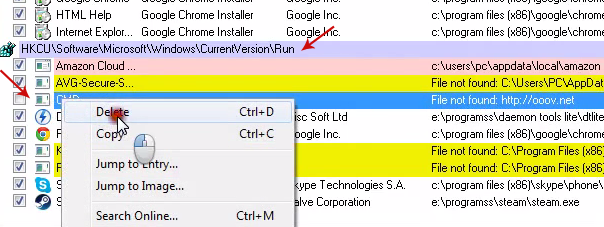
HKEY_CURRENT_USER\Software\Microsoft\Windows\CurrentVersion\Run then it should be "CMD" running cmd.exe /c start http://ooov.net & & exit.

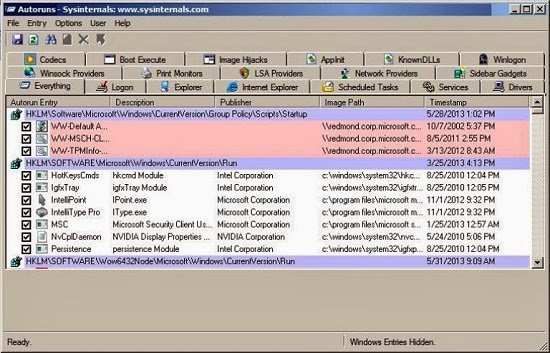
The good news is that it's not so difficult to remove ooov.net and gamezdoka.org pop-ups. You just need to download and use this very useful tool called Autoruns from Microsoft website. Please follow the steps in the removal guide below.

But there's one thing you should know about this infection: it comes bundled with adware and potentially unwanted programs (PUPs). In other words, if you're getting ooov.net and gamezdoka.org pop-ups on startup then your computer is probably infected by other malware as well, most likely PUPs. Let's get the first thing straight, we're not talking about man's best friend here – in fact we're talking about something that is closely related to one of man's worst enemies! The PUPs we're going to take a look at today are not our furry four legged friends, they are Potentially Unwanted Programs: a different beast entirely.

Potentially Unwanted Programs install themselves on your computer without clearly telling you that this is their intention. PUPs can be tool bars, home pages, web browsers and search engines and although that doesn't sound dangerous – in fact it sounds quite the opposite – in actual fact PUPs are incredibly annoying thanks to their nasty little habit of redirecting all of your web searches to completely different websites instead of the one you were attempting to visit. Ooov.net is a good example, isn't it? Not only that but they can also make your computer more vulnerable to online attacks from malicious software.

More often than not a PUP will be bundled or packaged with another item of software. And it doesn't matter whether this is a well known program or not, as Potentially Unwanted Programs attach themselves to software and applications of varying degrees of legitimacy. That means you could fall victim to a PUP because you downloaded a hit movie, some adult X rated content, new desktop wallpaper or even the widely used, and very reputable, program Skype. Some companies or people who offer downloads are completely aware that a PUP is packaged with their product; however others are none the wiser. As I said before I got this ooov.net pop-up after downloading Far Cry.

But it's not all doom and gloom for it is often possible to spot a Potentially Unwanted Program before it gets installed on your computer. The trick is to properly read the End User License Agreement when you're downloading something. Oftentimes PUPs that display ooov.net and gamezdoka.org pop-ups are mentioned in these (one reason that the developers of PUPs can claim they are not true malware). Malware and PUP creators know that most of us skim through License Agreements and they play on this. You need to watch out though because even when an 'added extra' is referenced the wording can be rather ambiguous or deliberately confusing. You may also come across sneaky little tricks such as awkward wording and check boxes that have already been checked in advance.

The other annoying thing is that if you do end up with a Potentially Unwanted Program on your machine, either through lack of your own diligence or due to a developer's tricky wording, the software developer will know that you've assumed your anti-virus wasn't doing its job properly. However, ask them about this and they'll just tell you that you should have read the License Agreement properly – and really, it's hard to argue with that logic!

Therefore to summarize, when you're downloading something - anything - from the Internet it really is worth your while to take just a moment or two longer and read the small print. That extra minute could save you a whole world of irritation and pain!

To stop ooov.net and gamezdoka.org from popping up on your computer, you can use Autoruns for Windows or open up Windows registry editor, search for ooov.net and delete all entries you find. You can also remove this error message by removing the start-up entry in the Windows Task Scheduler. I recommend using Autoruns. Once the problem is fixed, scan your computer with anti-malware software. Why? Because very often this adware comes bundled with PUPs and even spyware. There might be malware on your computer that you didn't notice yet. If you have any questions, please leave a comment down below. Good luck and be safe online!

Written by Michael Kaur, http://deletemalware.blogspot.com


Ooov.net/gamezdoka.org pop-up removal guide:

1. First of all, download recommended anti-malware software and run a full system scan. It will detect and remove this infection from your computer. You may then follow the manual removal instructions below to remove the leftover traces of this malware. Hopefully you won't have to do that.


2. As this infection is known to be installed by vulnerabilities in out-dated and insecure programs, it is strongly suggested that you use an automatic software update tool to scan for vulnerable programs on your computer.

3. Download Autoruns for Windows and save it to your Desktop.

4. Launch autoruns.exe program (Vista/Windows 7/8 users right-click and select Run As Administrator).


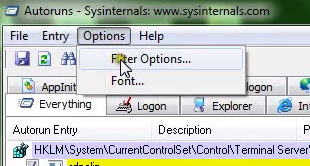
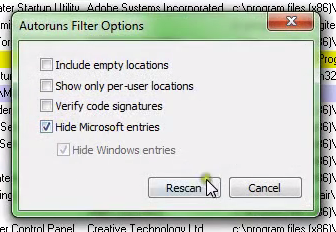
5. In the top menu, click Options > Filter Options.


6. Uncheck Hide Microsft entries and click Rescan.


7. Open Longon tab. Find HKCU\Software\Microsoft\Windows\CurrentVersion\Run in the list. Then right-click CMD and select Delete.


8. Close Autoruns and reboot your computer when done.

9. Scan your computer with anti-malware software.

    Thứ Ba, 18 tháng 11, 2014

    Remove Vosteran.com Search Virus (Uninstall Guide)

    If you've ever been unlucky enough to have been the victim of Vosteran Search (vosteran.com) – commonly referred to as malware – then you no doubt have sympathy for anyone who is experiencing the same thing. Malware comes in many different shapes and sizes and it ranges from the annoying and distracting to the downright dangerous. Some types of malware may seem fairly innocuous but can actually act as a gateway, allowing something far more serious to attack your computer. Vosteran is a PUP not malware but because it's usually installed without your permission it's not surprising at all that most people call it malware.


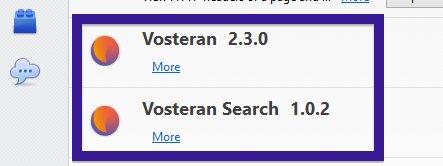
    PUP is a Potentially Unwanted Program. It doesn't sound too scary, what with the 'potentially' part of its name softening the blow somewhat but trust us when we say this is likely to be something that you really don't want installed on your computer. Currently, it's detected as PUP.Optional.Vosteran but I'm pretty sure most anti-virus engines will update databases soon with various detection names. Once installed, Vosteran Search adds browser extensions and creates Windows services that run every time Windows starts. As a result, you will notice multiple instances of Vosteran.exe on your computer. Malicious browser extensions are Vosteran 2.3.0 and Vosteran Search 1.0.2. These extensions will change your home page to Vosteran.com and your search engine provider to Vosteran Search.

    Part of the problem of this malware is the fact that we really don't know what it can do to our operating systems or our data – are we at risk of identity theft or fraud, or will our files be corrupted or destroyed? A malware attack can leave us in a state of panic.

    Sadly for us and the millions of other innocent computer users out there, malware is going nowhere soon and as developers become ever more sophisticated in their means of attacking us, protecting yourself is now more important than ever before.

    How is Vosteran Search installed?

    It is normally bundled with free software programs which means that when you install something on your computer you really need to read the software license agreement (i.e. the Terms and Conditions) properly so that you are 100% sure what it is you are actually downloading.

    What will happen if I've been hijacked by Vosteran Search?

    The majority of Potentially Unwanted Programs and browser hijackers leave you vulnerable to attack by adware – advertising supported software. These adverts may be pop-up or pop-under windows or banner ads. Adware is annoying and it also monitors which websites you're visiting so that the owner of the adware can choose which adverts are displayed on your PC. For example, your home page was probably Google but now you have a different home page with ads that are very often misleading. So, despite the fact that you've installed a PUP and a browser hijacker not only your search results will be redirected to sketchy websites, but you will also get ads on your computer. What is more, it's not a very comforting thought to know that you're being spied upon. In addition to this, Vosteran Search will also install a new toolbar in your browser. And far from being an improvement on your old toolbar, you'll soon weary of this one as it will generally have less useful functions, merely serving as a device that redirects you to websites of its own choosing.

    How do I defend myself against Vosteran Search?

    As mentioned you need to read license agreements thoroughly. Most PUPs will be mentioned in them because the software developers argue that a PUP is not actually malware. As always, you should also make sure you have a good anti-virus program installed on your computer and that it is the most up to date version of it too. Run it regularly and also keep an eye out for suspicious new toolbars, home pages or browsers – these are a very clear sign that you have been attacked by a Potentially Unwanted Program.

    To remove Vosteran.com Search from your computer, please follow the steps in the removal guide below. If you have any questions, please leave a comment down below. Good luck and be safe online!

    Written by Michael Kaur, http://deletemalware.blogspot.com


    Vosteran Search Removal Guide:


    1. First of all, download recommended anti-malware software and run a full system scan. It will detect and remove this infection from your computer. You may then follow the manual removal instructions below to remove the leftover traces of this infection. Hopefully you won't have to do that.


    2. As this infection is known to be installed by vulnerabilities in out-dated and insecure programs, it is strongly suggested that you use an automatic software update tool to scan for vulnerable programs on your computer.

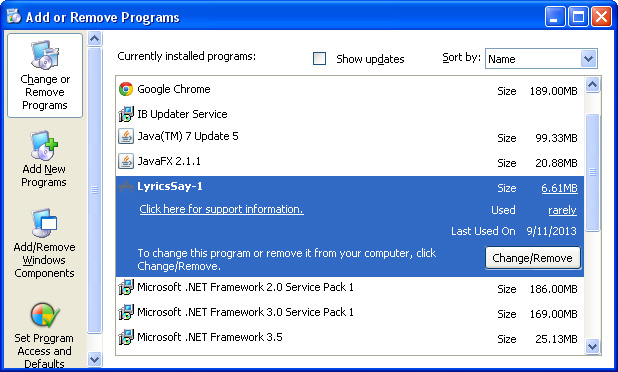
    3. Remove Vosteran Search related programs from your computer using the Add/Remove Programs control panel (Windows XP) or Uninstall a program control panel (Windows 7 and Windows 8).

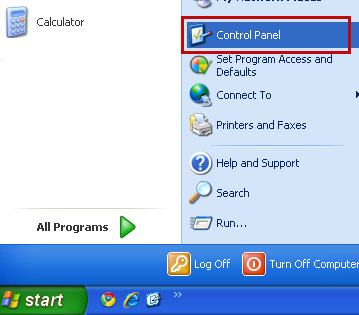
    Go to the Start Menu. Select Control Panel → Add/Remove Programs.
    If you are using Windows Vista or Windows 7, select Control Panel → Uninstall a Program.


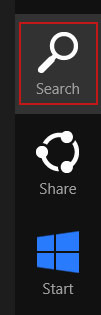
    If you are using Windows 8, simply drag your mouse pointer to the right edge of the screen, select Search from the list and search for "control panel".


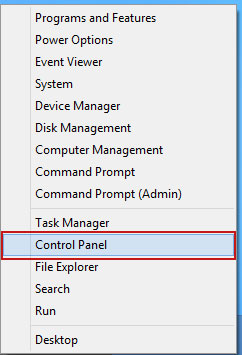
    Or you can right-click on a bottom left hot corner (formerly known as the Start button) and select Control panel from there.


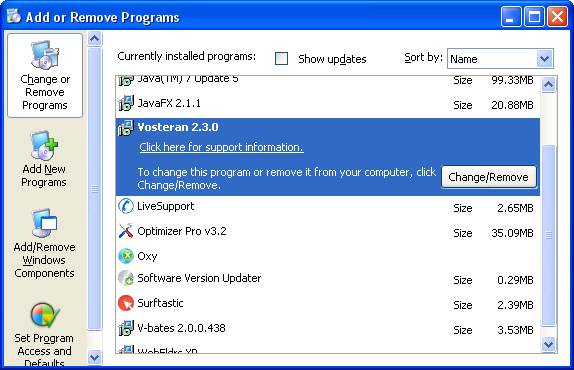
    4. When the Add/Remove Programs or the Uninstall a Program screen is displayed, scroll through the list of currently installed programs and remove the following programs:
    • Vosteran Search
    • Vosteran 2.3.0


    If you are using Windows Vista, Windows 7 or Windows 8, click Uninstall up near the top of that window. When you're done, please close the Control Panel screen.

    Remove Vostera Search from Google Chrome:

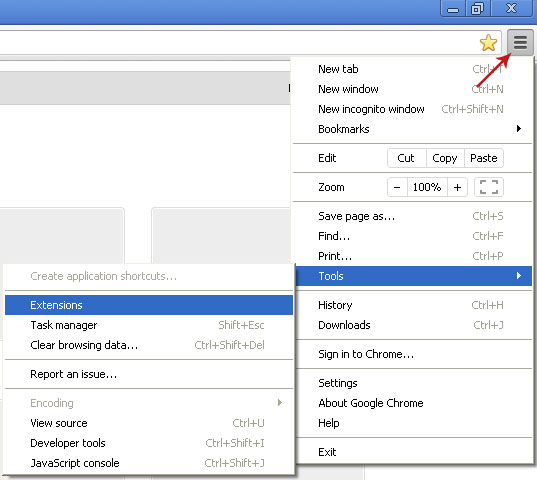
    1. Click on Chrome menu button. Go to Tools → Extensions.


    2. Click on the trashcan icon to remove Vosteran 2.3.0, Vosteran Search 1.0.2, BookmarkTube extensions.

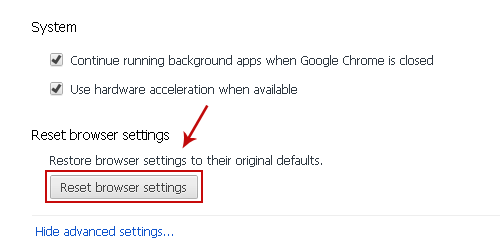
    3. Then select Settings. Scroll down the page and click Show advanced settings.


    4. Find the Reset browser settings section and click Reset browser settings button.


    5. In the dialog that appears, click Reset. That's it!

    Remove Vostera Search from Mozilla Firefox:

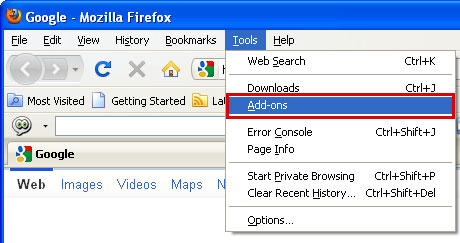
    1. Open Mozilla Firefox. Go to Tools → Add-ons.


    2. Select Extensions. Remove Vosteran 2.3.0, Vosteran Search 1.0.2, BookmarkTube browser extensions. Close Add-ons manger.


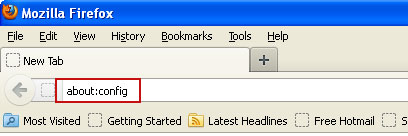
    3. In the URL address bar, type about:config and hit Enter.


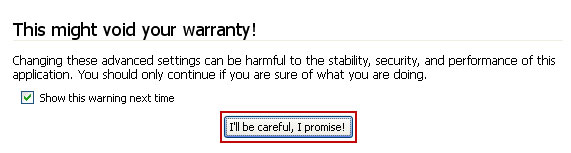
    Click I'll be careful, I promise! to continue.


    In the search filter at the top, type: vosteran

    Now, you should see all the preferences that were changed by vosteran.com. Right-click on the preference and select Reset to restore default value. Reset all found preferences!

    Remove Vostera Search from Internet Explorer:

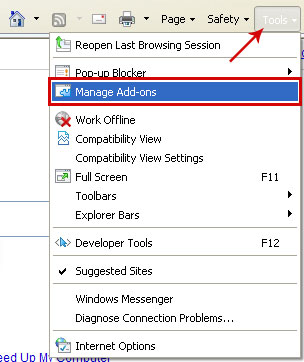
    1. Open Internet Explorer. Go to Tools → Manage Add-ons.


    2. Select Search Providers. First of all, choose Live Search search engine and make it your default web search provider (Set as default).

    3. Select Vosteran Search and click Remove to remove it. Close the window.

    Thứ Hai, 17 tháng 11, 2014

    1-877-695-4931 Warning! Your Computer May be Infected Scam

    1-877-695-4931 phone number is being used by fraudulent websites, quickpcfixer.com for instance, claiming to have detected two viruses on your computer and offering to remove them. The two supposedly detected viruses are Rootkit.Sirefef.Spy and Trojan.FakeAV-Download. DO NOT fall for this tech support scam! Your computer is not infected with the viruses mentioned in the fake warning. If you got this pop-up, please close the tab or browser and do not follow the on screen instructions. If you keep constantly getting this fake warning then your computer might be infected with adware, a PUP or a malicious browser extension. Please use this guide to remove 1-877-695-4931 tech support scam and any associated malware.

    Detected Security Error, Due to possible
    Suspicious Activity Found On Your Computer.
    Contact Expert Certified Live Technicians.

    Warning!
    Your computer may be infected:
    (2) New Potentially FATAL Viruses: Rootkit.Sirefef.Spy and Trojan.FakeAV-Download.
    Your Personal & Financial Information MAY NOT BE SAFE.
    To Remove Viruses, Call Tech Support  Now:
    1-877-695-4931


    Please note that quickpcfixer.com is just one of many websites used to display these misleading pop-ups. Besides, PUPs and adware may display pop-ups on your computer even when you're not browsing the Internet. You've probably already surmised from the name, Potentially Unwanted Program, that in reality it is something you could probably survive without! And despite purporting to be useful – such as a tool bar, web browser, homepage or search engine – the fact is all of these have been designed with one purpose in mind: to divert your search inquiries away from the website you wanted to visit and instead to one that the developer of the PUP has a vested interest in you visiting. In this case, it promotes bogus tech support instead of sketchy websites. But of course scammers may display other ads on your computer if they think that this scam didn't work out as they thought at first.

    The silver lining of the PUP shaped cloud is that Potentially Unwanted Programs are not, for the most part, created to cause you any problems: they don't spy on you or log your keystrokes to steal private data and they don't corrupt files or shut down your operating system like serious malware but that doesn't mean you should put up with having one on your computer. After all, not being able to visit the websites you want goes beyond annoying!

    So how can you protect yourself from Potentially Unwanted Programs and 1-877-695-4931 scam? The trick is to be extremely vigilant when you're downloading software from the Internet because in the majority of cases PUPS are bundled with other software – either with, or without, the owner of that software's knowledge. Also, run a full system scan with anti-malware software to make sure that your computer is clean. If you have questions, leave a comment down below. I will be more than happy to help you. Good luck and be safe online!

    Written by Michael Kaur, http://deletemalware.blogspot.com


    1-877-695-4931 Tech Support Scam Removal Guide:

    1. First of all, download anti-malware software and run a full system scan. It will detect and remove this infection from your computer. You may then follow the manual removal instructions below to remove the leftover traces of this malware. Hopefully you won't have to do that.


    2. Remove 1(855)-207-5505 scam pop-up related programs from your computer using the Add/Remove Programs control panel (Windows XP) or Uninstall a program control panel (Windows 7 and Windows 8).

    Go to the Start Menu. Select Control Panel → Add/Remove Programs.
    If you are using Windows Vista or Windows 7, select Control Panel → Uninstall a Program.


    If you are using Windows 8, simply drag your mouse pointer to the right edge of the screen, select Search from the list and search for "control panel".


    Or you can right-click on a bottom left hot corner (formerly known as the Start button) and select Control panel from there.


    3. When the Add/Remove Programs or the Uninstall a Program screen is displayed, scroll through the list of currently installed programs and remove the following:
    • Quiknowledge
    • LyricsSay-1
    • Websteroids
    • BlocckkTheAds
    • HD-Plus 3.5
    • and any other recently installed application


    Simply select each application and click Remove. If you are using Windows Vista, Windows 7 or Windows 8, click Uninstall up near the top of that window. When you're done, please close the Control Panel screen.


    Remove scam pop-ups from Google Chrome:

    1. Click on Chrome menu button. Go to Tools → Extensions.


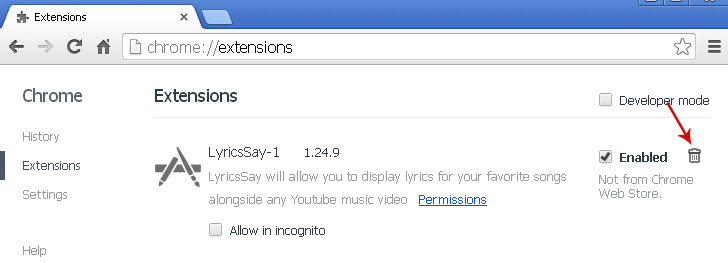
    2. Click on the trashcan icon to remove BlocckkTheAds, LyricsSay-1, Websteroids, Quiknowledge, HD-Plus 3.5 and other extensions that you do not recognize.


    If the removal option is grayed out then read how to remove extensions installed by enterprise policy.


    Remove scam pop-ups from Google Chrome:

    1. Open Mozilla Firefox. Go to Tools → Add-ons.


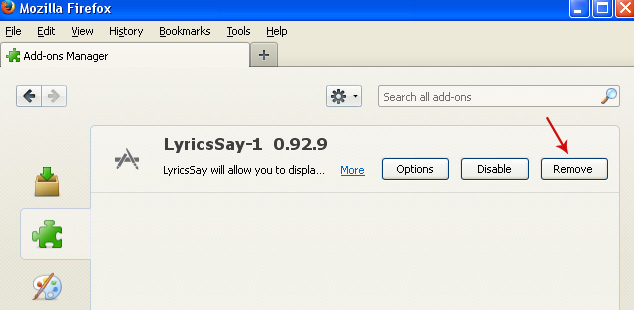
    2. Select Extensions. Click Remove button to remove BlocckkTheAds, LyricsSay-1, Websteroids, Quiknowledge, HD-Plus 3.5 and other extensions that you do not recognize.


    Remove scam pop-ups from Internet Explorer:

    1. Open Internet Explorer. Go to Tools → Manage Add-ons. If you have the latest version, simply click on the Settings button.


    2. Select Toolbars and Extensions. Click Remove/Disable button to remove the browser add-ons listed above.

    Remove consumer-responses.com pop-up (Uninstall Guide)

    Consumer-responses.com survey pop-ups usually occur on computers infected with adware and Potentially Unwanted Programs (PUPs). Here we're going to take a closer look at PUPs and find out a) what they are and b) how you defend yourself against one. PUP stands for Potentially Unwanted Program – a software program that has been installed on your computer, laptop or tablet, usually by a rather underhand method.

    A Potentially Unwanted Program, as the name implies, is likely to be a program that you don't really want running on your PC. So what does a PUP look like and how do you know if you have one installed? PUPs are most commonly associated with tool bars although they can also manifest themselves as search engines, home pages or as in this case a malicious browser extension that redirects users to consumer-responses.com and asks to complete a survey. Whatever form they take, they usually have one thing in common with each other and that is to redirect your web searches to websites of their own choice, this time survey pages. Generally speaking a Potentially Unwanted Program is not dangerous and it hasn't been created to corrupt your files or steal any of your data, unlike some other forms of malware, for example CryptoWall 2.0; however they can drive you absolutely nuts! After all, if you want to visit your favourite news website, a forum you're a member of, or you fancy buying a new pair of sneakers online, the last thing you want to be battling against is being constantly sent to consumer-responses.com to complete a survey.

    With that in mind, let's take a look at how you defend yourself when it comes to consumer-responses.co pop-ups. To learn how to best protect yourself it helps to have just a little general background and know how a PUP or adware installs itself on your PC. In addition to this, knowing your computer and being aware of which programs you have installed on it is beneficial too. This gives you a far better fighting chance of spotting if your computer is running differently to normal or is displaying any strange behavior or previously unseen browsers or tool bars.

    How are Potentially Unwanted Programs installed?

    In the majority of cases PUPs come bundled with other software programs. This is either because a successful company has given a less established company a helping hand, or because the newcomer has rather cheekily, packaged their program with another company's, without telling them.

    Regardless of how your Potentially Unwanted Program was packaged, all you need to be aware of is that when you're installing an application or program, there might be an unknown quantity hiding in its shadow. To be fair, occasionally you may find this added extra genuinely useful; however, more often than not it will simply be an unwanted nuisance or distraction, consumer-responses.com pop-ups to name it.

    How do I make sure I'm not also installing PUPs and adware?

    Potentially Unwanted Programs and adware usually receive a nod to their existence in the End User License Agreement that you'll see displayed when you're installing an item of software. Therefore you should make sure that you read this carefully and make a note of any additional programs that are mentioned. Pay particular attention to check boxes which may need to be checked or unchecked in order to avoid also installing a PUP.

    In order to stop consumer-responses.com pop-ups, please follow the steps in the removal guide below. If you have any questions, please leave a comment down below. Good luck and be safe online!

    Written by Michael Kaur, http://deletemalware.blogspot.com


    Consumer-responses.com Pop-ups Removal Guide:


    1. First of all, download anti-malware software and run a full system scan. It will detect and remove this infection from your computer. You may then follow the manual removal instructions below to remove the leftover traces of this malware. Hopefully you won't have to do that.


    2. Remove consumer-responses.com pop-up related programs from your computer using the Add/Remove Programs control panel (Windows XP) or Uninstall a program control panel (Windows 7 and Windows 8).

    Go to the Start Menu. Select Control Panel → Add/Remove Programs.
    If you are using Windows Vista or Windows 7, select Control Panel → Uninstall a Program.


    If you are using Windows 8, simply drag your mouse pointer to the right edge of the screen, select Search from the list and search for "control panel".


    Or you can right-click on a bottom left hot corner (formerly known as the Start button) and select Control panel from there.


    3. When the Add/Remove Programs or the Uninstall a Program screen is displayed, scroll through the list of currently installed programs and remove the following:
    • Quiknowledge
    • LyricsSay-1
    • Websteroids
    • BlocckkTheAds
    • HD-Plus 3.5
    • and any other recently installed application


    Simply select each application and click Remove. If you are using Windows Vista, Windows 7 or Windows 8, click Uninstall up near the top of that window. When you're done, please close the Control Panel screen.

    Remove consumer-responses.com pop-up related extensions from Google Chrome:

    1. Click on Chrome menu button. Go to Tools → Extensions.


    2. Click on the trashcan icon to remove BlocckkTheAds, LyricsSay-1, Websteroids, Quiknowledge, HD-Plus 3.5 and other extensions that you do not recognize.


    If the removal option is grayed out then read how to remove extensions installed by enterprise policy.


    Remove consumer-responses.com pop-up related extensions from Mozilla Firefox:

    1. Open Mozilla Firefox. Go to Tools → Add-ons.


    2. Select Extensions. Click Remove button to remove BlocckkTheAds, LyricsSay-1, Websteroids, Quiknowledge, HD-Plus 3.5 and other extensions that you do not recognize.


    Remove consumer-responses.com pop-up related add-ons from Internet Explorer:

    1. Open Internet Explorer. Go to Tools → Manage Add-ons. If you have the latest version, simply click on the Settings button.


    2. Select Toolbars and Extensions. Click Remove/Disable button to remove the browser add-ons listed above.

    Thứ Ba, 11 tháng 11, 2014

    Remove ago.coupround.com pop-up ads (Virus Removal Guide)

    Ago.coupround.com pop-up ads usually occur on computers infected with adware and Potentially Unwanted Programs (PUPs). First things first: what exactly is a Potentially Unwanted Program? Secondly: how do you know if you've been infected by one, and thirdly, how do you prevent one from making a nuisance of itself in the future? Three good questions and ones we'll hopefully answer below!

    Potentially Unwanted Programs, or PUPs to give them their abbreviated name, are software programs which you have inadvertently downloaded onto your computer, laptop, tablet or other device. That in itself begs the question, how do you inadvertently download something? The fact is that no matter what you're downloading, whether it be a paid for software upgrade or a freeware music download, there is a fairly high chance that you could also be downloading a sneaky hidden extra too.

    Here's an example of an ago.coupround.com pop-up you may get when your computer is infected with potentially unwanted programs and adware. As you can see, it's pretty messy and clearly promotes something you probably shouldn't go for.


    A Potentially Unwanted Program is, no prizes for guessing, something that in all likelihood you don't really want or need. Most commonly, PUPs are tool bars however far from being useful they will more often than not redirect your search inquiries, not to the website you were looking for, but to one that the PUP developer wants you to visit. Potentially Unwanted Programs are not usually designed to do you any harm – they won't log keystrokes, take screenshots, damage files or lock your system down like some forms of spyware and malware but they are not all sweetness and light either. Plus they will have you tearing your hair out with their constant redirecting of Internet searches and annoying ago.coupround.com pop-up ads.

    Next, how do you know if you have a PUP installed on your machine? Well, that's pretty self explanatory as seen above. Got a new tool bar? A new home page? A new browser? Clearly too many ads and pop-ups coming from ago.coupround.com? Well congratulations, you got yourself a PUP!

    That brings us on to how to protect yourself from any future PUPs. It helps to have a little bit of background into the way that Potentially Unwanted Programs install themselves first.

    In the majority of cases a Potentially Unwanted Program will be bundled with another piece of software. The reason for this is that either an established company is allowing a startup or newbie to piggyback off them by letting them package their software with their own application, or it is because the new kid on the block has packaged the PUP with a better known company's software – without their knowledge.

    Whichever method is used, all you really need to know is that you need to pay attention when you're downloading from the Internet. Don't forget that no matter how reputable the application you're downloading is, it could still be bundled with a PUP – regardless of whether it's a legitimate duo or not.

    So you're aware of that fact but how do you actually take control and do something about it? This is where you need to stop quickly clicking through the End User License Agreement (EULA) and start taking a little more interest in what you're installing on your device. Check the wording and look carefully at any check boxes and you should have a far better idea of what you're about to install. If it's already too late on your computer is flooded with annoying and misleading ago.coupround.com pop-ups and ads, then please follow the steps in the removal guide below. If you have any questions, please leave a comment down below. Good luck and be safe online!

    Written by Michael Kaur, http://deletemalware.blogspot.com


    Ago.coupround.com Ads Removal Guide:


    1. First of all, download anti-malware software and run a full system scan. It will detect and remove this infection from your computer. You may then follow the manual removal instructions below to remove the leftover traces of this malware. Hopefully you won't have to do that.


    2. Remove ago.coupround.com ads related programs from your computer using the Add/Remove Programs control panel (Windows XP) or Uninstall a program control panel (Windows 7 and Windows 8).

    Go to the Start Menu. Select Control Panel → Add/Remove Programs.
    If you are using Windows Vista or Windows 7, select Control Panel → Uninstall a Program.


    If you are using Windows 8, simply drag your mouse pointer to the right edge of the screen, select Search from the list and search for "control panel".


    Or you can right-click on a bottom left hot corner (formerly known as the Start button) and select Control panel from there.


    3. When the Add/Remove Programs or the Uninstall a Program screen is displayed, scroll through the list of currently installed programs and remove the following:
    • BlockAndSurf
    • LyricsSay-1
    • Safer-Surf
    • SpeedCheck
    • HD-Plus 3.5
    • and any other recently installed application


    Simply select each application and click Remove. If you are using Windows Vista, Windows 7 or Windows 8, click Uninstall up near the top of that window. When you're done, please close the Control Panel screen.

    Remove ago.coupround.com pop-up ads related extensions from Google Chrome:

    1. Click on Chrome menu button. Go to Tools → Extensions.


    2. Click on the trashcan icon to remove BlocckkTheAds, LyricsSay-1, BlockAndSurf, Safer-Surf, SpeedCheck, HD-Plus 3.5 and other extensions that you do not recognize.


    If the removal option is grayed out then read how to remove extensions installed by enterprise policy.


    Remove ago.coupround.com pop-up ads related extensions from Mozilla Firefox:

    1. Open Mozilla Firefox. Go to Tools → Add-ons.


    2. Select Extensions. Click Remove button to remove BlocckkTheAds, LyricsSay-1, BlockAndSurf, Safer-Surf, SpeedCheck, HD-Plus 3.5 and other extensions that you do not recognize.


    Remove ago.coupround.com pop-up ads related add-ons from Internet Explorer:

    1. Open Internet Explorer. Go to Tools → Manage Add-ons. If you have the latest version, simply click on the Settings button.


    2. Select Toolbars and Extensions. Click Remove/Disable button to remove the browser add-ons listed above.