Thứ Năm, 23 tháng 1, 2014

Remove fastdailyfind.com pop-up virus (Removal Guide)

Fastdailyfind.com pop-up ads appear due adware installed on your computer. If you are been getting a lot of pop-ups lately then I'm afraid your computer is infected with adware/PUP. This infection is not the same for everyone because there are at least five programs that can display those intrusive and sometimes even offensive pop-ups. In may case, the culprit was Highlightly adware and web browser extension with the same name installed on all web browsers. It might be different for you, let's say a program called LyricsSay-1. I listed all the ralated adware programs I know below. One thing is for sure, you likely installed this bloatware when installing free software. Fastdailyfind.com ads can appear in a new window or in a new tab. To stop the pop-ups and remove adware from your computer, please follow the steps in the removal guide below.

http://fastdailyfind.com/ads-clicktrack/click/newjump1.do?affiliate...


Technically, fastdailyfind.com is an advertising network technology tracking domain. In other words, advertisers use it to distribute ads and track how they perform. The website itself isn't malicious but it delivers highly misleading pop up ads. Most of them will claim that your Flash player is outdated or that you need to install the latest version of Java. It may also promote fake anti-virus and system optimization products. Be very careful and do not download anything from that site. The truth is, they want to infect your computer even more. Even though, they will install what they promised, they will also offer you to install third-party programs on your computer. Mostly, toolbars, adware, spyware and other potentially unwanted programs that would help them to gather more information about your browsing habits and search queries. Such information is very valuable when deliver more relevant and targeted ads on infected computers. So, it's not just another pop-up issue, they are actually spying on you. What is more, adware usually comes bundled with other bloatware nowadays. For this reason, it might be difficult to identify what's causing redirects and pop-up ads, especially that such adware programs and browser extenions are rarely listed in the Add or Remove Programs section of the Control Panel.

Fastdailyfind.com related adware is usually bundled with freeware. It's very important that you pay attention to the license agreements and installation screens when installing anything. If an installation screen offers you Custom or Advanced installation options, it is a good idea to select these as they will typically disclose what other 3rd party software will also be installed and allow you to opt out of them. If you have any questions, please leave a comment below. Good luck and be safe online!

Written by Michael Kaur, http://deletemalware.blogspot.com


fastdailyfind.com pop-up removal instructions:

1. First of all, download anti-malware software and run a full system scan. It will detect and remove this infection from your computer. You may then follow the manual removal instructions below to remove the leftover traces of this malware. Hopefully you won't have to do that.




Also, please feel free to call us (toll free) and we'll be happy to help you on the phone.


2. Remove fastdailyfind.com related programs from your computer using the Add/Remove Programs control panel (Windows XP) or Uninstall a program control panel (Windows 7 and Windows 8).

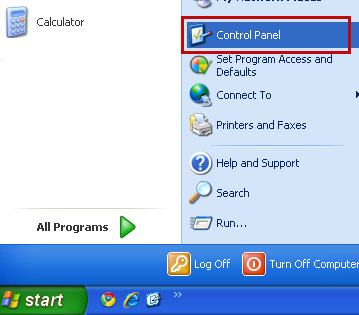
Go to the Start Menu. Select Control Panel → Add/Remove Programs.
If you are using Windows Vista or Windows 7, select Control Panel → Uninstall a Program.


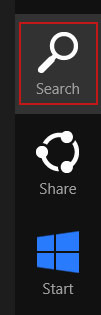
If you are using Windows 8, simply drag your mouse pointer to the right edge of the screen, select Search from the list and search for "control panel".


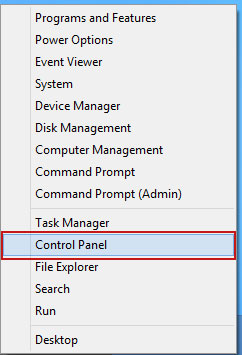
Or you can right-click on a bottom left hot corner (formerly known as the Start button) and select Control panel from there.


3. When the Add/Remove Programs or the Uninstall a Program screen is displayed, scroll through the list of currently installed programs and remove the following:
  • Highlightly
  • LyricsSay-1
  • Websteroids
  • ScorpionSaver
  • HD-Plus 3.5
  • and any other recently installed application
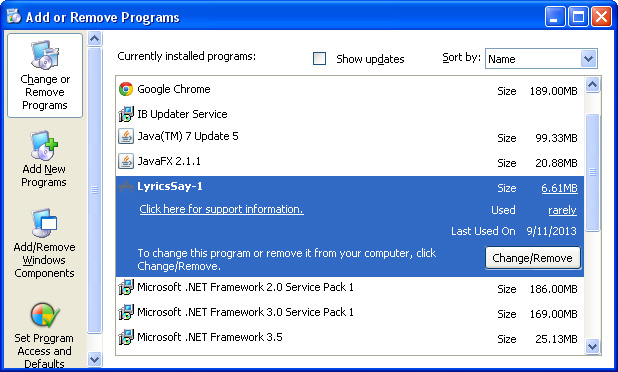

Simply select each application and click Remove. If you are using Windows Vista, Windows 7 or Windows 8, click Uninstall up near the top of that window. When you're done, please close the Control Panel screen.


Remove fastdailyfind.com pop-ups from Google Chrome:

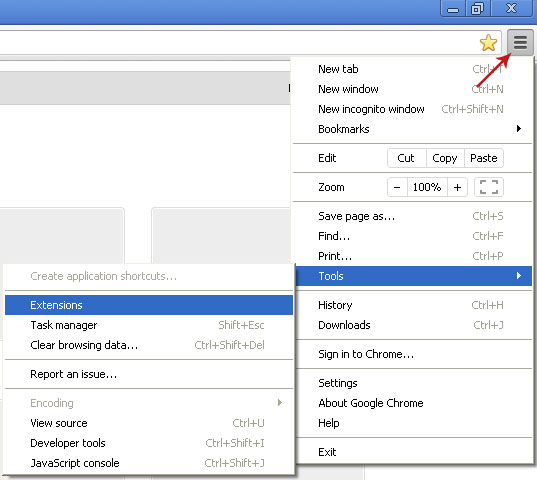
1. Click on Chrome menu button. Go to Tools → Extensions.


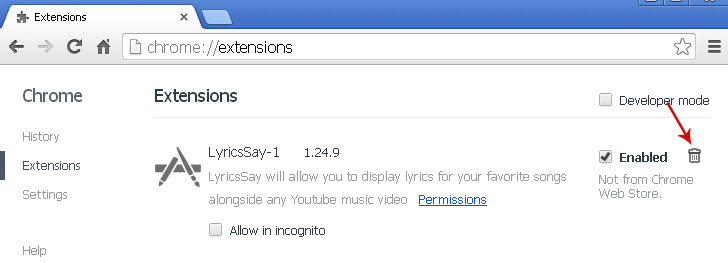
2. Click on the trashcan icon to remove LyricsSay-1, Highlightly, Websteroids, HD-Plus 3.5 and other extensions that you do not recognize.


Remove fastdailyfind.com pop-ups from Mozilla Firefox:

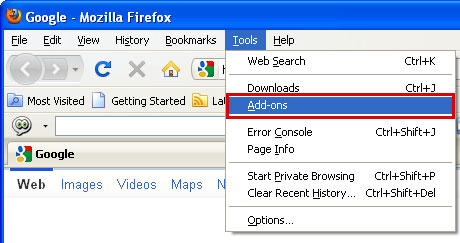
1. Open Mozilla Firefox. Go to Tools → Add-ons.


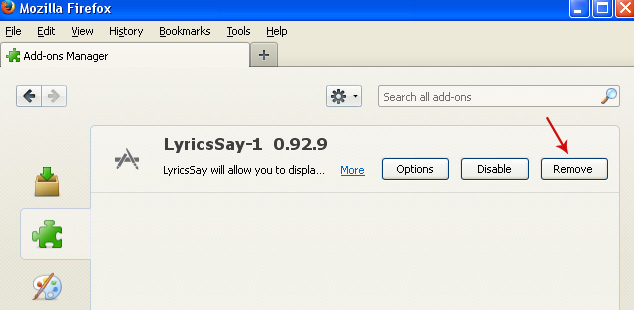
2. Select Extensions. Click Remove button to remove LyricsSay-1, Highlightly, Websteroids, HD-Plus 3.5 and other extensions that you do not recognize.


Remove fastdailyfind.com pop-ups from Internet Explorer:

1. Open Internet Explorer. Go to Tools → Manage Add-ons. If you have the latest version, simply click on the Settings button.
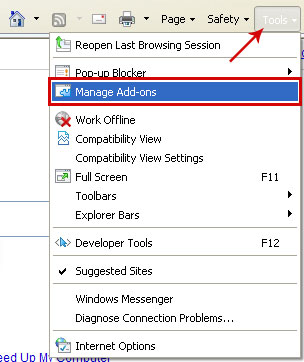


2. Select Toolbars and Extensions. Click Remove/Disable button to remove the browser add-ons listed above.

Download Smadav Pro 2014 Rev. 9.6.1 Full Serial


SmadAV is an additional antivirus software that is designed to protect your computer.
1) Additional protection for your computer, 100% compatible with other antivirus software! Works with your primary antivirus as an extra layer of defense.
2) Best USB Antivirus (Total Protection USB drives)Prevent viruses that spread through USB stick drives.
3) Best for offline use (no need to update very often) Designed to be used with computers that are rarely or not even connected to the internet. SmadAV does not need to be updated as often as other antivirus. (Regularly updates once a month).
4) Cleaner and tools to clean the virus. SmadAV not only removes viruses but can also fix registry problems in infected machine.
What's new in this version:
  • Version 9.6.1 includes virus database 223
  • Added USB virus detection
  • New user interface
Screenshot :
Link Download :

Download Light Image Resizer 4.5.8.0 + Keygen


Light Image Resizer – previously known as VSO Image Resizer – software organizes your photos by shrinking their resolution or moving them within your hard drive. Light Image Resizer is the perfect tool for those who store their digital pictures and images on their PC and who want to resize, compress, convert, create copies, create thumbnails, import or organize photos.


Screenshoot :

Link Download :


Thứ Tư, 22 tháng 1, 2014

Cara Memberi Password pada Folder (Tanpa Software)


Cara Memberi Password pada Folder (Tanpa Software)

     Dun-soft.blogspot.com - Sebenarnya banyak sekali Software yang bisa kita gunakan untuk mengunci folder, atau memberikan password pada folder. Tapi kali ini Jaka mau share sedikit tips Bagaimana cara memberi password pada Folder tanpa menggunakan software khusus, dalam arti hanya menggunakan program bawaan Windows, dan tentunya bisa dibawa kemana-mana. Lalu bagaimana Cara Memberi Password pada Folder di Windows?

  • Sekarang setting dulu Passwordnya, Ubah tulisan "masukanPassword" menjadi Password pilihan kamu. Lalu kamu Save > Type pilih All Files dan Simpan dengan nama protect.bat

  • Sekarang Jalankan/Klik 2x pada File protect.bat, maka akan muncul Folder baru dengan nama Locker. Nah, di Folder inilah File-file rahasia kamu dapat disimpan.
  • Sekarang masukan File-file rahasia kamu kedalam Folder tersebut, dan untuk mengunci dan menyembunyikan folder tersebut, kamu klik 2x protect.bat, kemudian tekan Y untuk mengunci, atau tekan N untuk membatalkan.
  • Untuk membukanya kembali, kamu cukup klik 2x lagi pada file protect.bat kemudian masukan Password yang tadi sudah di setting.
  • Selamat mencoba :)


Thứ Ba, 21 tháng 1, 2014

How to Install Windows 7 OS

1 Turn your computer on then press Del or F2 (depend on your computer’s mainboard) to enter the system BIOS
2 Go to Boot menu and choose Boot From CD/DVD.
3 Press F10 to save the configuration and exit BIOS then reset your computer.
4 Insert Windows 7 DVD into your DVD drive then start up your computer, Windows 7 will be loading files.
5 Select these parts:Language to Install,Time and currency format, Keyboard or input method. Then click Next.
6 Choose Install Now if you want to install Windows 7.Choose the Windows 7 version that you want to install in 'Select the operating system you want to install' . Here we choose Windows7 Ultimate then click next (depending on your Windows DVD, this step is an
7 Click 'I accept the license terms' in 'Please read the license' then click Next.
8 Choose 'Upgrade' in 'Which type of installation do you want' if you want to upgrade from an older Windows version to Windows 7, 'Custom (advance)' if you want to install a new version of Windows.
9 Choose Partition for installation, if your computer has only one hard disk, it will be easy for selection, but if it has some Partition, you will have to consider which Partition to choose.
10 Wait for Installing Windows to progress.Your computer might be restarted during the process.
11 Type you’re a user account and computer name.After click Next.
12 Type a password for your account, you can also Type a password hint to help in case of forgetting the password in the future, and then click Next.
13 Type in activation code or key for your license in Product key box if you have any.Click Next.
14 Choose how to protect your Windows.Here we choose Use recommended settings.
15 Set up your Time zone then click Next.
16 Choose an option from 3 choices:Public Network, Work Network, Home Network. Choose Home Network for using Internet at home.

What is dce.exe and how to remove it?

dce.exe - DCEService


What is dce.exe?


dce.exe belongs to Distributed Computing Experiment malware with bitcoin mining module. It's detected as Trojan/Win32.BitMiner, Generic35.BHDR, Win32:PUP-gen [PUP], Trojan.Generic.10299997. The program is configured to run automatically when Windows starts. It also creates a Windows service called DCEService. dce.exe is usually located in the C:\Program Files\DCE\ folder. It runs in the background and doesn't display any visible windows. It waits when the system goes to idle and then starts mining bitcoins. What is more, it can download and install additional malware components on your computer. So, not only it uses system resources but also can install spyware or rootkits. As a result, your passwords and other sensitive information may be stolen. What is more, it may cause system errors and slow down your computer. After all, it's not essential for Windows. I recommend you to remove dce.exe from your computer and run a full system scan with recommended anti-malware software.


File name: dce.exe
Publisher: DCEService
File Location Windows XP: C:\Program Files\DCE\'
File Location Windows 7: C:\Program Files\DCE\'
Startup file: SYSTEM\CurrentControlSet\Services 'DCEService'

Remove "Distributed Computing Experiment" Malware (Uninstall Guide)

Distributed Computing Experiment program is a part of a bitcoin mining Trojan similar to RiskTool.Win32.BitCoinMiner infection. It appears as dce.exe in the Windows Task Manager but without any file information other than DCEService. Of course, missing version information does not necessarily mean that the file is malicious, however, uploading the file to VirusTotal quickly revealed that it's indeed malicious (scan results). It seems to be a rather new variant, detection ration isn't perfect the say the least. But it make sense, the value of bitcoin increased and thus more scammers are trying to mine coins using infected computers.

Mining is very difficult nowadays and requires expensive hardware, so instead of buying one, scammers install bitocin mining trojans on thousands of infected computers and make extra money from botnets. Please note that some antivirus programs may detect Distributed Computing Experiment as a PUP (potentially unwanted program) because it might be difficult to tell whether the users installed this program or it was installed without his knowledge.


Distributed Computing Experiment is distributed mostly via infected websites but it may also come bundled with adware and freeware. Once installed, it changes Windows registry so that you can't uninstall it through Control Panel even if you have all the administrative rights. Usually, users get the following error message:
You do not have sufficient access to uninstall Distributed Computing Experiment. Please contact your system administrator.
The good news is that you can remove this program manually but since it usually comes bundled with adware and PUPs you should run anti-malware program after getting rid of the clutter. To remove "Distributed Computing Experiment" program and related files from your computer, please follow the steps in the removal guide below. If you have any questions, please do not hesitate to contact me. Simply leave a comment below. Good luck and be safe online!

Written by Michael Kaur, http://deletemalware.blogspot.com


Distributed Computing Experiment removal instructions:

1. First of all, download recommended anti-malware software and run a full system scan. It will detect and remove this infection from your computer. You may then follow the manual removal instructions below to remove the leftover traces of this infection. Hopefully you won't have to do that.


Manual removal:

2. Open Task Manager and end dce.exe process.

3. Go to C:\Program Files\ and delete DCE folder.

4. Open Windows Registry (type regedit and open).

5. Navigate to HKEY_LOCAL_MACHINE\Software\Microsoft\Windows\currentversion\Uninstall

6. You will notice long file names made up of random numbers and letters and pan right where it will tell you what the program is. Scroll through the list till Disturbed Computing Experiment program shows up.


7. Delete the entire registry path and exit Registry Editor.

That's it! The program should no longer show up and bother you anymore.