Hiển thị các bài đăng có nhãn How-To. Hiển thị tất cả bài đăng

Thứ Tư, 16 tháng 4, 2014

Remove newnext.me nengine.dll error pop-up (Uninstall Guide)

Newnext.me nengine.dll error message pops up when your computer is infected with adware and PUPs. This DLL file belongs to an adware program detected as NewNextDotMe, Trojan_NextLive.adw, Adware.NextLive.1 and PUP.Optional.NextLive.A by multiple anti-virus engines. It comes bundled with Mobogenie and other potentially unwanted programs. Perhaps the most worrying part about such programs is that they install themselves on your computer without your knowledge and without your permission. Whilst not generally speaking, harmful they are incredibly annoying and they can leave your machine vulnerable to attacks by nastier forms of malicious software.

RunDLL
There was a problem starting C:\Users\[UserName]\Appdata\Roaming\newnext.me\nengine.dll
The specified module could not be found.

nengine.dll error

As I said, in the majority of case adware and PUPs will be bundled, or packaged, with another piece of software. Sometimes this software is reputable and sometimes it is not. Newnext.me and NextLive adware don't discriminate! So, you could find yourself with an adware or a PUP on your machine that had latched itself onto that flashing set of emoticons that you downloaded because you really couldn't live without them.

The good news is that you can usually catch Newnext.me at the source, as when you're downloading something PUPs are quite often referred to in the End User License Agreement that you're supposed to read (!) when downloading something. Reading the End User License Agreement will save you time and headaches when you have to remove nengine.dll errors or pop-ups. Chances are, like many people you just skip through these but if you took a few moments more you may notice that some EULAs contain some wording that is nothing to do with the download you do want. Wording like 'We suggest that you also install the...'. And then, here's the sticky part, the check box will have already been ticked for you. The problem is that downloading software is hardly the most interesting of activities and many of us are guilty of not reading the small print and just clicking 'Next'... and then wondering why on earth we have a a malware/spyware application.

If you are getting nengine.dll error message when you turn on your computer it means that your computer is infected with Newnext.me adware or if you already removed it from the system, it could be that the startup information is still present and Windows tries to load the file that doesn't exist. As a result you get an error massage saying that nengine.dll module could not be found. It basically means that there are still some registry keys left that point to this adware file.

To resolve Newnext.me nengine.dll issue, you can use Autoruns for Windows or open up Windows registry editor, search for nengine.dll or Newnext.me and delete all entries you find. You can also remove this error message by removing the start-up entry in the Windows Task Scheduler. I recommend using Autoruns. Once the problem is fixed, scan your computer with anti-malware software. Why? Because very often this adware comes bundled with PUPs and even spyware. There might be malware on your computer that you didn't notice yet. If you have any questions, please leave a comment below. Good luck and be safe online!

Written by Michael Kaur, http://deletemalware.blogspot.com


Newnext.me nengine.dll error message removal guide:

1. First of all, download recommended anti-malware software and run a full system scan. It will detect and remove this infection from your computer. You may then follow the manual removal instructions below to remove the leftover traces of this malware. Hopefully you won't have to do that.


2. Download Autoruns for Windows and save it to your Desktop.

3. Launch autoruns.exe program (Vista/Windows 7/8 users right-click and select Run As Administrator).
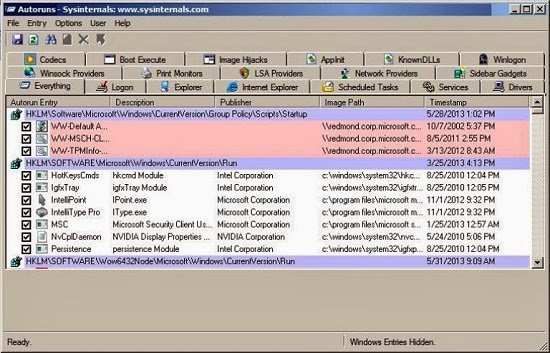


4. In the top menu, click File > Find... and type the file name nengine.dll, then click Find Next. Alternatively, you can scroll through the list and look for any entry related to newnext.me.


5. If found, right-click on the entry and choose delete.

6. Close Autoruns and reboot your computer when done.

7. Scan your computer with anti-malware software.


Associated Files:
  • C:\Documents and Settings\[User]\Application data\newnext.me\nengine.dll (Windows XP)
  • C:\users\[User]\appdata\roaming\newnext.me\nengine.dll (Windows 7/8)

Chủ Nhật, 9 tháng 2, 2014

Remove “Installed by enterprise policy” Unwanted Chrome Extensions

"Installed by enterprise policy" unwanted or even malicious Chrome extensions are very often installed by adware and potentially unwanted programs (PUPs), for example DomaIQ. As you may already know, Chrome allows other programs on your computer to install browser extensions. Some of them are useful and others are malicious. Such extensions are managed and cannot be removed or disabled via Chrome's Extensions page. The issue is that they install themselves on your computer without your knowledge, and it's debatable how useful they actually are - you probably already have another program on your PC doing exactly what the PUP purports to do – only better. Worse of all, PUPs may mess with your computer's security. Let's take a malicious extension labeled YoutubeAdblocker 1.2. It can access you data on all websites including browsing activity. It can also manage and install other extensions and themes. Furthermore, it usually comes bundled with adware, PUPs and even spyware. So, if you found a rogue or malicious Chrome extension that cannot be removed delete icon is grayed out then then you can be pretty sure that your computer is infected with adware and even spyware. To remove extensions Installed by enterprise policy from Chrome, please follow the steps in the removal guide below.


But first thing's first: what are PUPs and rogue extensions? In short, rogue or malicious extensions are usually installed by PUPs. PUPs are programs that are sometimes added to your computer's operating system without your knowledge or express approval. The 'potentially' part comes in to play because whilst you can't really term a PUP a virus, due to the fact that some people do actually find them useful, they are still, in many cases unnecessary and unwanted.

PUPs can take on a number of guises - as mentioned they may be an extension, or perhaps they're a new home page or search engine. Either way, the choice was not yours, which in turn can make many people suspicious and rather resentful of their existence. After all, surely it's your choice, and your choice alone, what gets downloaded on to your PC.

So how did that PUP find its way on to my computer? Good question. Most PUPs including those that install rogue extensions labeled "Installed by enterprise policy" are bundled together with other software. This is a sneaky tactic used by the creators that ensure their malware or their website finds its way on to your machine - whether you like it or not! Other ways a PUP can infect you is if you've visited a website that has also been infected with the PUP, if you've watched a video online or downloaded wallpaper or emoticons (you know, smiley faces!) - these can also have laid you wide open to the unwelcome attentions of a PUP.

OK, I think I know how I need to avoid PUPs. Yes, you're quite right. To avoid being targeted, (and then annoyed!), by PUPs and rogue Chrome extensions you really do need to watch what you're downloading. And I'm not just talking about cheap looking websites that offer hot model or racing car wallpapers, those weird glittery graphics or crazy shaped cursors. No, you also need to pay attention when downloading reputable software or programs from established providers too as these may have been bundled with a PUP without the publisher's knowledge. The trick is to read the End User License Agreement carefully and don't just click 'OK' and whiz through the process. It really is worth taking your time now and saving yourself the hassle of having to uninstall those Potentially Unwanted Programs later - and you can trust us on that!

OK, so now you know how PUPs and malicious extensions installed by enterprise policy place are distributed and how to avoid them in the future. Let's cover how you could get rid of such extension and related malware. If you have any questions, please leave a comment below. Good luck and be safe online!

Written by Michael Kaur, http://deletemalware.blogspot.com


Removal instructions:

1. First of all, download recommended anti-malware software and run a full system scan. It will detect and remove this infection from your computer. You may then follow the manual removal instructions below to remove the leftover traces of this infection. Hopefully you won't have to do that.


Also, please feel free to call us (toll free) and we'll be happy to help you on the phone.


2. Remove rogue extension/PUP related programs from your computer using the Add/Remove Programs control panel (Windows XP) or Uninstall a program control panel (Windows 7 and Windows 8).

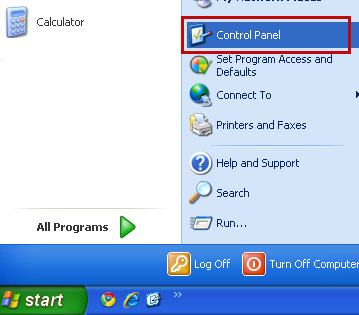
Go to the Start Menu. Select Control Panel → Add/Remove Programs.
If you are using Windows Vista or Windows 7, select Control Panel → Uninstall a Program.


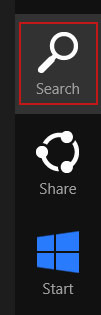
If you are using Windows 8, simply drag your mouse pointer to the right edge of the screen, select Search from the list and search for "control panel".


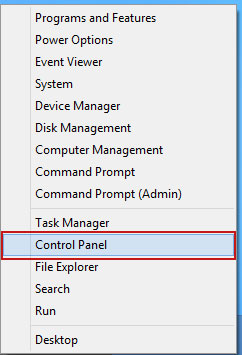
Or you can right-click on a bottom left hot corner (formerly known as the Start button) and select Control panel from there.


3. When the Add/Remove Programs or the Uninstall a Program screen is displayed, scroll through the list of currently installed programs and remove the following programs:
  • ggrreatsaver
  • SNT
  • WS-Enabler
  • WS-Supporter 1.80
  • YoutubeAdBlocker
  • UTuBerAodBlOacKeoR


If you are using Windows Vista, Windows 7 or Windows 8, click Uninstall up near the top of that window. When you're done, please close the Control Panel screen.


Remove extensions "Installed by enterprise policy" from Google Chrome:

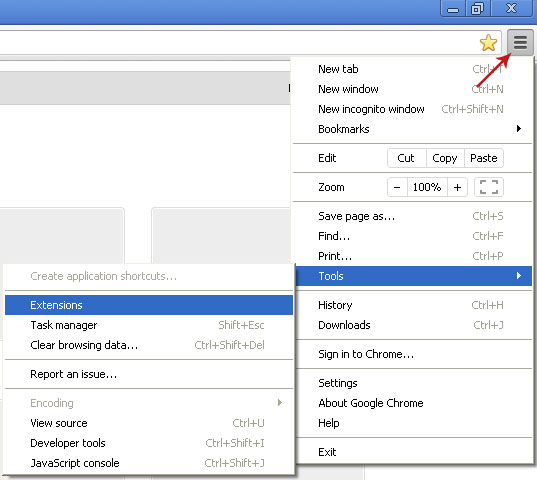
1. Click on Chrome menu button. Go to Tools → Extensions.


2. Enable Developer mode and take note of the unwanted extension ID shown below the extension title. Close Chrome browser.


3. Open the Registry Editor (regedit.exe).


4. Go to Edit → Find Next or hit Ctrl+F3. Enter the ID of the unwanted extension and click to find registry key associated with it.


5. Remove the registry key which has a Data value the same as the extension's ID which you noted or saved above (likely 1). Right click on the registry key and select Delete. Accept the warning by selecting Yes. Close Registry Editor.

HKEY_LOCAL_MACHINE\SOFTWARE\Policies\Google\Chrome\ExtensionInstallForcelist


6. Open Chrome browser once again and navigate to chrome://policy/. Click Show value under Chrome policies.


7. As you can see there's a path on your computer pointing to an extension update file. It is very important find the folder with the ID of the unwanted extension and delete it. Otherwise, it can reinstall itself.


In my case it was located in a folder named YoutubeAdblocker. Yours will be different of course. Delete the entire folder.


8. Unwanted extension’s files are stored in Chrome's default extensions folder as well. You need to delete the directory corresponding to the noted ID.

Windows Vista/7/8 users: %LOCALAPPDATA%\Google\Chrome\User Data\Default\Extensions

Windows XP users: %USERPROFILE%\Local Settings\Application Data\Google\Chrome\User Data\Default\Extensions


9. Finally, navigate to C:\Windows\System32\GroupPolicy\Machine (alternatively C:\Windows\System32\GroupPolicy\User).

Look for Registry.pol or other .pol files that reference the extension ID. To do so, simply open the file with Notepad. If it's the file you are looking for, delete it.


10. Last but not least, scan your computer with recommend anti-malware software. As I said, rogue browser extensions come bundled with adware and even spyware. Make sure you PC is clean.


Thứ Năm, 16 tháng 1, 2014

What is SPVC32Loader.dll and how to remove it?

SPVC32Loader.dll belongs to software Search Protect by Conduit developed by Conduit Ltd. It's a part of a widespread browser hijacker that changes home page and default search engine provider to Conduit Search. The file is usually located in C:\PROGRA~2\SearchProtect\SearchProtect\bin\ folder. It's digitally signed by Conduit Ltd. using VeriSign. Multiple anti-virus scanners have detected this file as malware (scan report). Detection names:
  • Win32:SearchProtect-C [Adw]
  • Adware.Conduit.21
  • Win32.Adware.SearchProtect.B
  • PUP.Optional.Conduit.A
  • TROJ_GEN.F47V1216
  • Conduit (fs)
As you can see, it's detected mostly as adware and PUP but some anti-virus engines flag it as a Trojan as well. One way or another, it's something that may cause problems or even make your web browser crash. In other words, you are better off without it.

SPVC32Loader.dll is loaded via AppInit_DLLs. Normally, Windows registry loads such files but some of them are hidden to avoid detection.


As a result, security scanners identify such files as potentially dangerous saying that the reference may be loading hidden adware or spyware. With SPVC32Loader.dll this was exactly the case.

I don't recommend removing this file manually. It requires unloading certain modules and modifying Windows registry. Besides, there are more files associated with Conduit browser hijacker. They should be removed as well. Run a full system scan with anti-malware program and it will detect all the files for you. You can also use Autoruns program to remove certain files on this infection. To remove SPVC32Loader.dll and related malware from your computer, please follow the steps in the removal guide below.

Written by Michael Kaur, http://deletemalware.blogspot.com


SPVC32Loader.dll removal guide:

1. First of all, download recommended anti-malware software and run a full system scan. It will detect and remove this infection from your computer. You may then follow the manual removal instructions below to remove the leftover traces of this malware. Hopefully you won't have to do that.


2. Download Autoruns for Windows and save it to your Desktop.

3. Launch autoruns.exe program (Vista/Windows 7/8 users right-click and select Run As Administrator).


4. In the top menu, click File > Find... and type the file name SPVC32Loader.dll, then click Find Next. Alternatively, you can scroll through the list and look for any entry related to SPVC32Loader.dll and Conduit.


5. If found, right-click on the entry and choose delete.

6. Close Autoruns and reboot your computer when done.

7. Scan your computer with anti-malware software.

Thứ Bảy, 28 tháng 12, 2013

How to Fix TBVerifier.dll Error on Startup (Removal Guide)

This is a troubleshooting guide for TBVerifier.dll the specified module could not be found RUNDLL error. Usually, users get this error message upon booting up their computers. The error message refers to TBverifier.dll which is a part of Conduit Toolbar Verifier. It is digitally signed by Conduit Ltd. Multiple anti-virus scanners have detected possible malware in this file, for example Conduit (fs), PUP.Optional.Conduit.A, Win32:SearchProtect-B [PUP], TR/Trash.Gen. This malware hijacks web browsers and redirects users to Conduit Search site. If you are getting a RunDLL error saying that TBVerifier.dll module could not be found then your computer was or I'm afraid is still infected by this malware. To properly remove malware and solve this issue, please follow the steps in the removal guide below.

RUNDLL
Error loadding C:\DOCUME~1\Michael\LOCALS~1\Temp\CT3316852\plugins\TBVerifier.dll
The specified module could not be found.
So, basically, you are getting this error message because the TBVerifier.dll file which is a part of Conduit malware was either removed from your computer or for some reason couldn't be properly loaded but since your system is still configured to run this file you are getting this annoying RunDLL error message. But don't worry I got the fix and it's quite simple. Besides, this error message isn't something that you should really worry about but it's an indicator that you have more serious problems that need your attention. You need to remove Conduit malware not just simply remove the malware's scheduled task.

To resolve TBVerifier.dll issue, you can use Autoruns for Windows or open up Windows registry editor, search for TBVerifier.dll and delete all entries you find. You can also remove this error message by removing the start-up entry in the Windows Task Scheduler. I recommend using Autoruns. Once the problem is fixed, scan your computer with anti-malware software. Stay safe folks!

Written by Michael Kaur, http://deletemalware.blogspot.com


TBVerifier.dll error message removal guide:
1. First of all, download recommended anti-malware software and run a full system scan. It will detect and remove this infection from your computer. You may then follow the manual removal instructions below to remove the leftover traces of this malware. Hopefully you won't have to do that.


2. Download Autoruns for Windows and save it to your Desktop.

3. Launch autoruns.exe program (Vista/Windows 7/8 users right-click and select Run As Administrator).


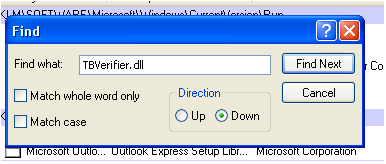
4. In the top menu, click File > Find... and type the file name TBVerifier.dll, then click Find Next. Alternatively, you can scroll through the list and look for any entry related to TBVerifier.dll and Conduit.


5. If found, right-click on the entry and choose delete.

6. Close Autoruns and reboot your computer when done.

7. Scan your computer with anti-malware software.