 |
| RocketTab End User License Agreements |
 |
| Client.exe error message shows up every time Windows starts |
I don't know about you but I'm guessing that, like me, you're perfectly okay with your current search options and your existing tool bar does the job you expect it to. The likelihood of this new tool bar being any better or having amazing functions that your existing one doesn't is slim.
What is more, multiple anti-virus scanners have detected possible malware in BrowserSafeguard with RocketTab. PUA.Downloader, Trojan[:HEUR]/Win32.AGeneric, MSIL/Adware.iBryte.G, PUP.Optional.iBryte, Generic PUP.y just to name a few. It's typically distributed through a pay-per-install bundle and as a matter a fact is rather common program in the U.S. with the rank of Rank #3,138. In other words, it's being distributed quite heavily and targets mostly users form the United States.
How is Rocket Tab installed on my computer?
As touched upon above, normally Rocket Tab comes bundled with other programs. This usually happens in one of two ways: either an established company is giving a leg up to a start up by letting them bundle their program with their own, or, the new kid on the block is surreptitiously bundling their program with a more reputable one.
However, all that you and I care about is the fact that we now have this PUP and browser hijacker installed on our computer.
How do I defend myself against Rocket Tab?
It all comes down to being careful when installing software. Tempting though it is, you need to stop rushing through License Agreements when you're downloading something. This is because a lot of the time PUPs and browser hijackers developers do make reference to their program in the License Agreement. After all, they do not see their program as "unwanted' or even 'potentially unwanted'. To them it's a legit piece of software.
Watch out though as the wording is often ambiguous and sometimes check boxes are pre-checked (and vice versa) to try and sneak the Rocket Tab past you.
If you have any questions, please leave a comment down below. Good luck and be safe online!
Written by Michael Kaur, http://deletemalware.blogspot.com
Rocket Tab Removal Guide:
1. First of all, download recommended anti-malware software and run a full system scan. It will detect and remove this infection from your computer. You may then follow the manual removal instructions below to remove the leftover traces of this infection. Hopefully you won't have to do that.

2. Remove Rocket Tab related programs from your computer using the Add/Remove Programs control panel (Windows XP) or Uninstall a program control panel (Windows 7 and Windows 8).
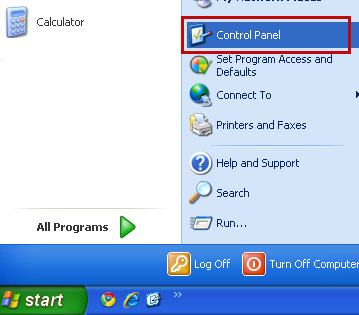
Go to the Start Menu. Select Control Panel → Add/Remove Programs.
If you are using Windows Vista or Windows 7, select Control Panel → Uninstall a Program.
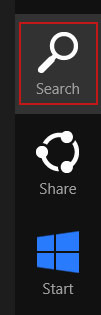
If you are using Windows 8, simply drag your mouse pointer to the right edge of the screen, select Search from the list and search for "control panel".
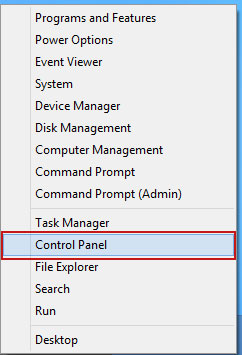
Or you can right-click on a bottom left hot corner (formerly known as the Start button) and select Control panel from there.
3. When the Add/Remove Programs or the Uninstall a Program screen is displayed, scroll through the list of currently installed programs and remove the following:
- Rocket Tab
- BrowserSafeguard

If you are using Windows Vista, Windows 7 or Windows 8, click Uninstall up near the top of that window. When you're done, please close the Control Panel screen.
Remove Rocket Tab from Google Chrome:
1. Click on Chrome menu button. Then select Settings. Scroll down the page and click Show advanced settings.

2. Find the Reset browser settings section and click Reset browser settings button.
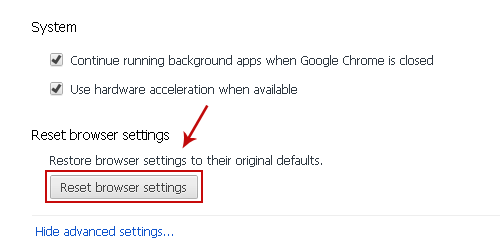
3. In the dialog that appears, click Reset. Close Chrome.
Remove Rocket Tab from Mozilla Firefox:
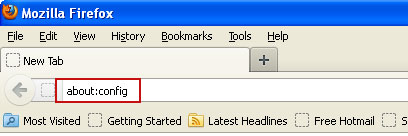
1. Open Mozilla Firefox. In the URL address bar, type about:config and hit Enter.
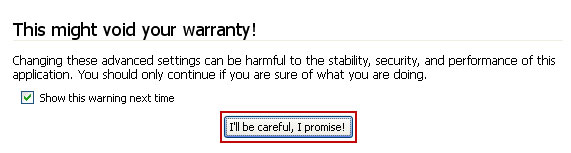
Click I'll be careful, I promise! to continue.
In the search filter at the top, type: RocketTab
Now, you should see all the preferences that were changed by Rocket Tab. Right-click on the preference and select Reset to restore default value. Reset all found preferences!
2. Click the Firefox menu button in the upper-right corner of the browser.
3. Then select Help from the menu.
4. Select Troubleshooting Information.
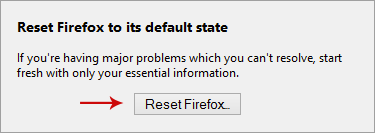
5. Click the Reset Firefox button at the upper-right corner of the Troubleshooting Information page.
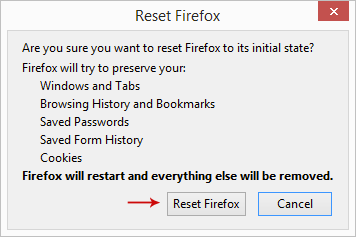
6. Click the Reset Firefox button again to confirm the reset.
7. Firefox will restart. Click Finish and you're done.
Remove Rocket Tab from Internet Explorer:
1. Open Internet Explorer. Go to Tools → Manage Add-ons.
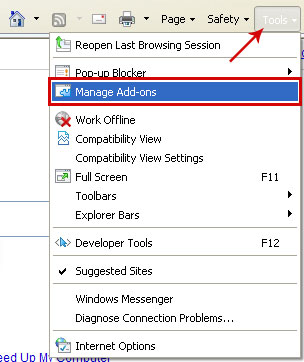
2. Select Search Providers. First of all, choose Live Search search engine and make it your default web search provider (Set as default).
3. Select Rocket Tab and click Remove to remove it. Close the window.
6. Finally, go to Tools → Internet Options and restore your home page to default. That's it!

Không có nhận xét nào:
Đăng nhận xét