
But first thing's first: what are PUPs and rogue extensions? In short, rogue or malicious extensions are usually installed by PUPs. PUPs are programs that are sometimes added to your computer's operating system without your knowledge or express approval. The 'potentially' part comes in to play because whilst you can't really term a PUP a virus, due to the fact that some people do actually find them useful, they are still, in many cases unnecessary and unwanted.
PUPs can take on a number of guises - as mentioned they may be an extension, or perhaps they're a new home page or search engine. Either way, the choice was not yours, which in turn can make many people suspicious and rather resentful of their existence. After all, surely it's your choice, and your choice alone, what gets downloaded on to your PC.
So how did that PUP find its way on to my computer? Good question. Most PUPs including those that install rogue extensions labeled "Installed by enterprise policy" are bundled together with other software. This is a sneaky tactic used by the creators that ensure their malware or their website finds its way on to your machine - whether you like it or not! Other ways a PUP can infect you is if you've visited a website that has also been infected with the PUP, if you've watched a video online or downloaded wallpaper or emoticons (you know, smiley faces!) - these can also have laid you wide open to the unwelcome attentions of a PUP.
OK, I think I know how I need to avoid PUPs. Yes, you're quite right. To avoid being targeted, (and then annoyed!), by PUPs and rogue Chrome extensions you really do need to watch what you're downloading. And I'm not just talking about cheap looking websites that offer hot model or racing car wallpapers, those weird glittery graphics or crazy shaped cursors. No, you also need to pay attention when downloading reputable software or programs from established providers too as these may have been bundled with a PUP without the publisher's knowledge. The trick is to read the End User License Agreement carefully and don't just click 'OK' and whiz through the process. It really is worth taking your time now and saving yourself the hassle of having to uninstall those Potentially Unwanted Programs later - and you can trust us on that!
OK, so now you know how PUPs and malicious extensions installed by enterprise policy place are distributed and how to avoid them in the future. Let's cover how you could get rid of such extension and related malware. If you have any questions, please leave a comment below. Good luck and be safe online!
Written by Michael Kaur, http://deletemalware.blogspot.com
Removal instructions:
1. First of all, download recommended anti-malware software and run a full system scan. It will detect and remove this infection from your computer. You may then follow the manual removal instructions below to remove the leftover traces of this infection. Hopefully you won't have to do that.


Also, please feel free to call us (toll free) and we'll be happy to help you on the phone.
2. Remove rogue extension/PUP related programs from your computer using the Add/Remove Programs control panel (Windows XP) or Uninstall a program control panel (Windows 7 and Windows 8).
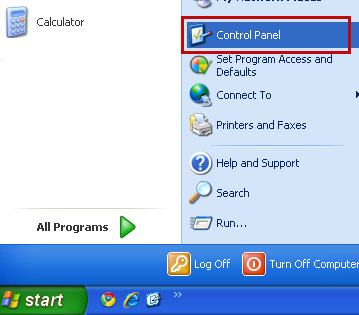
Go to the Start Menu. Select Control Panel → Add/Remove Programs.
If you are using Windows Vista or Windows 7, select Control Panel → Uninstall a Program.
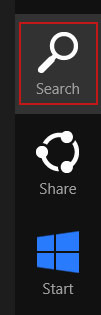
If you are using Windows 8, simply drag your mouse pointer to the right edge of the screen, select Search from the list and search for "control panel".
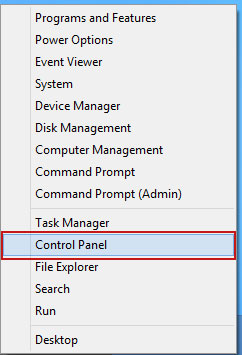
Or you can right-click on a bottom left hot corner (formerly known as the Start button) and select Control panel from there.
3. When the Add/Remove Programs or the Uninstall a Program screen is displayed, scroll through the list of currently installed programs and remove the following programs:
- ggrreatsaver
- SNT
- WS-Enabler
- WS-Supporter 1.80
- YoutubeAdBlocker
- UTuBerAodBlOacKeoR

If you are using Windows Vista, Windows 7 or Windows 8, click Uninstall up near the top of that window. When you're done, please close the Control Panel screen.
Remove extensions "Installed by enterprise policy" from Google Chrome:
1. Click on Chrome menu button. Go to Tools → Extensions.
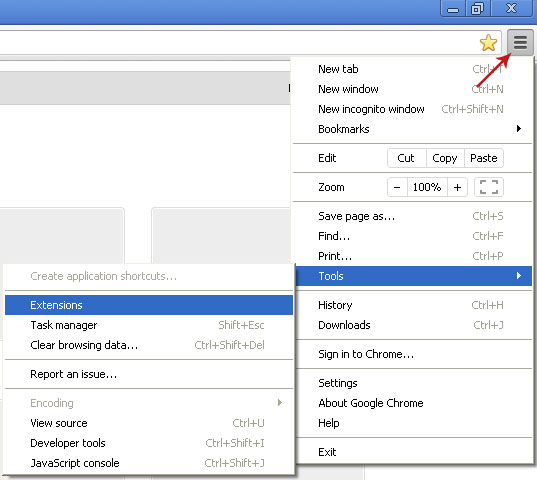
2. Enable Developer mode and take note of the unwanted extension ID shown below the extension title. Close Chrome browser.

3. Open the Registry Editor (regedit.exe).

4. Go to Edit → Find Next or hit Ctrl+F3. Enter the ID of the unwanted extension and click to find registry key associated with it.

5. Remove the registry key which has a Data value the same as the extension's ID which you noted or saved above (likely 1). Right click on the registry key and select Delete. Accept the warning by selecting Yes. Close Registry Editor.
HKEY_LOCAL_MACHINE\SOFTWARE\Policies\Google\Chrome\ExtensionInstallForcelist

6. Open Chrome browser once again and navigate to chrome://policy/. Click Show value under Chrome policies.

7. As you can see there's a path on your computer pointing to an extension update file. It is very important find the folder with the ID of the unwanted extension and delete it. Otherwise, it can reinstall itself.

In my case it was located in a folder named YoutubeAdblocker. Yours will be different of course. Delete the entire folder.

8. Unwanted extension’s files are stored in Chrome's default extensions folder as well. You need to delete the directory corresponding to the noted ID.
Windows Vista/7/8 users: %LOCALAPPDATA%\Google\Chrome\User Data\Default\Extensions
Windows XP users: %USERPROFILE%\Local Settings\Application Data\Google\Chrome\User Data\Default\Extensions

9. Finally, navigate to C:\Windows\System32\GroupPolicy\Machine (alternatively C:\Windows\System32\GroupPolicy\User).
Look for Registry.pol or other .pol files that reference the extension ID. To do so, simply open the file with Notepad. If it's the file you are looking for, delete it.

10. Last but not least, scan your computer with recommend anti-malware software. As I said, rogue browser extensions come bundled with adware and even spyware. Make sure you PC is clean.

Không có nhận xét nào:
Đăng nhận xét